


ProductSimplifying Redaction with CaseGuard: Documents, Audio and Video
Introduction the the time saving redaction tool CaseGuard.

Dave Thorne

CaseGuard Studio includes 30+ enhancement effects designed to improve clarity or strengthen concealment when you redact images or videos. These effects work alongside our AI video redaction & our AI image redaction tools, allowing you to sharpen, magnify, blur, brighten, or otherwise enhance footage directly within the platform.
Each effect includes an intuitive intensity slider, giving you complete control over how the enhancement appears in your video or image. For example, objects closer to the camera may require a stronger blur for proper concealment, while distant or low-quality footage may benefit from higher levels of sharpening or magnification to reveal important details.
Every CaseGuard license includes access to all redaction and enhancement effects, and they can be stacked to create a customized result. This flexibility makes CaseGuard Investigate especially powerful for investigators who need to improve visibility in dark, blurry, or fast-moving footage. Many agencies use these enhancement effects to clarify critical moments in surveillance or body-worn camera video, supporting investigations and helping solve cases more efficiently.
Some of the filter parameters have been adjusted from the default setting for the purposes of this post.
CaseGuard has 5 different shapes available for redactions.
Select the shape you would like to use for your redaction from the Tool Properties Panel.

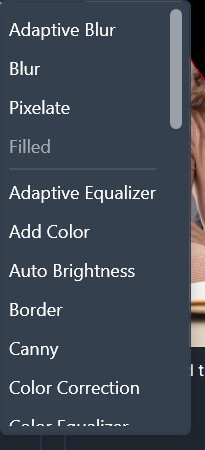
CaseGuard has 31 different effects to use for redactions. The distance the effect extends from the object can be changed using the Margin settings.
The most commonly used effects are grouped first in the drop down list and then the remainder are listed alphabetically.
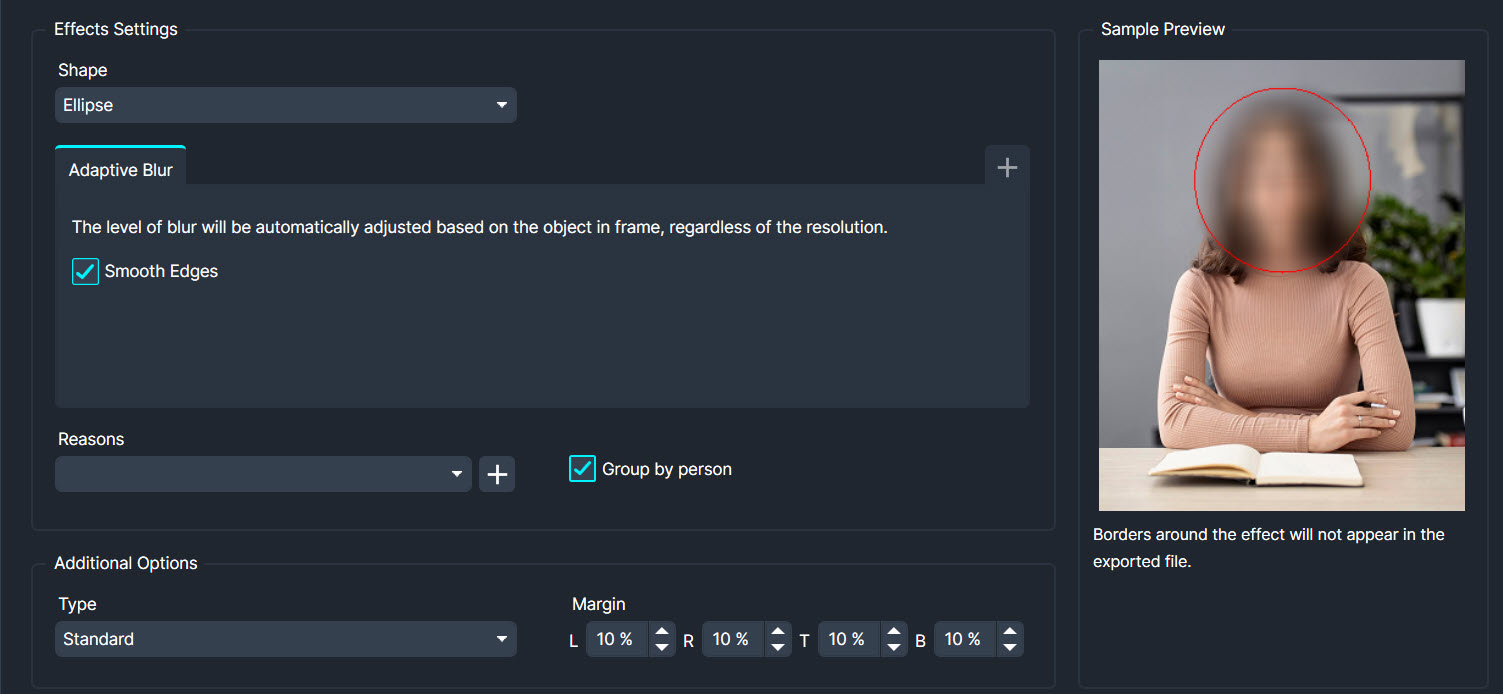
Applies a varying degree of blurriness to different parts of the image, based on the local contrast, resulting in a smoother appearance.
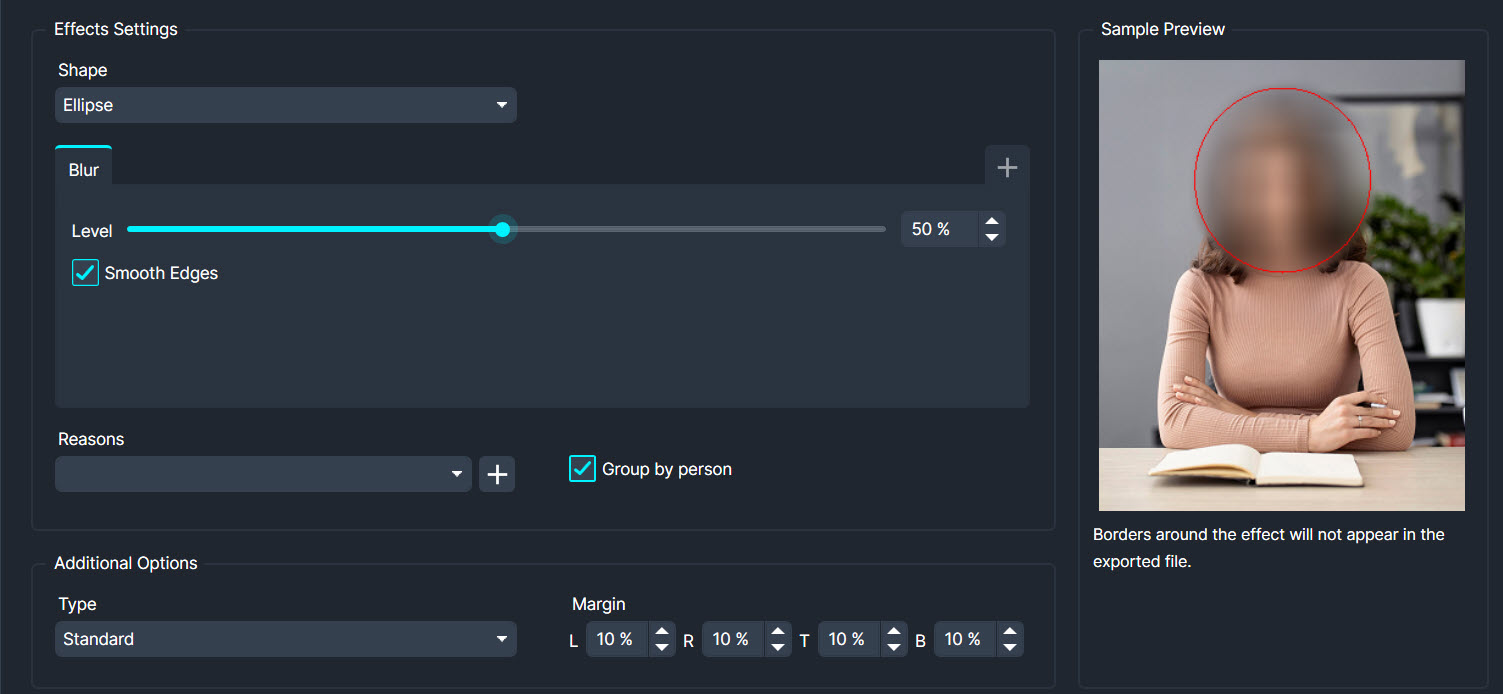
Softens the image by reducing sharpness, often used to obscure details or reduce noise.
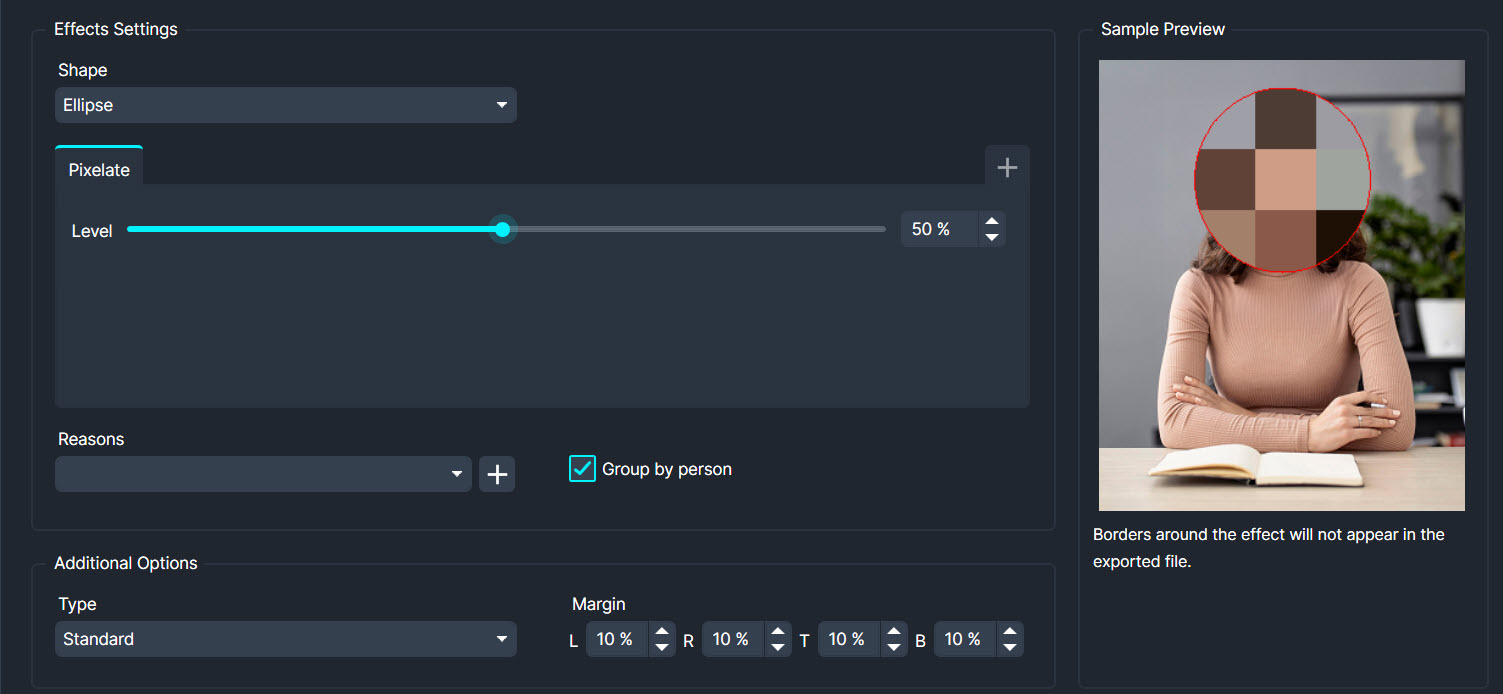
Converts portions of the image into larger pixel blocks, effectively obscuring details.
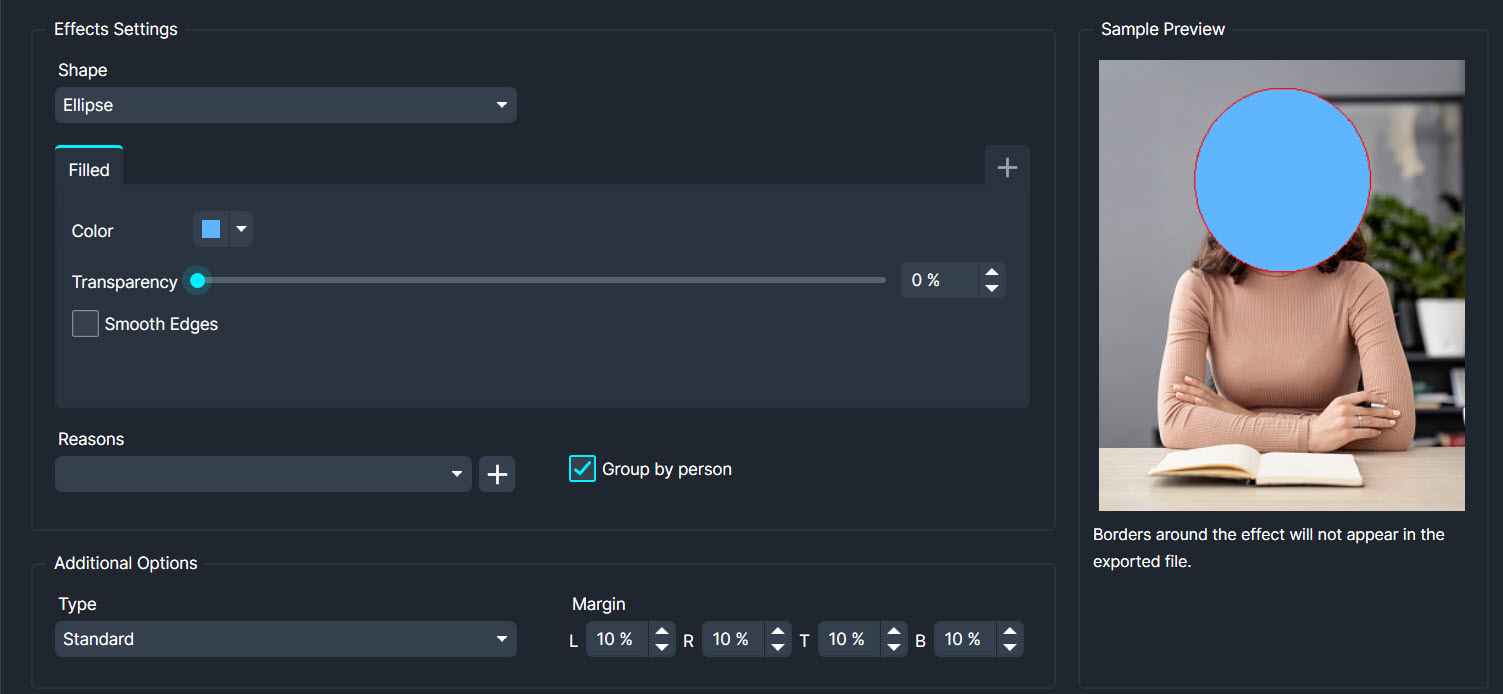
Fills selected areas with a solid colour, concealing the original content.
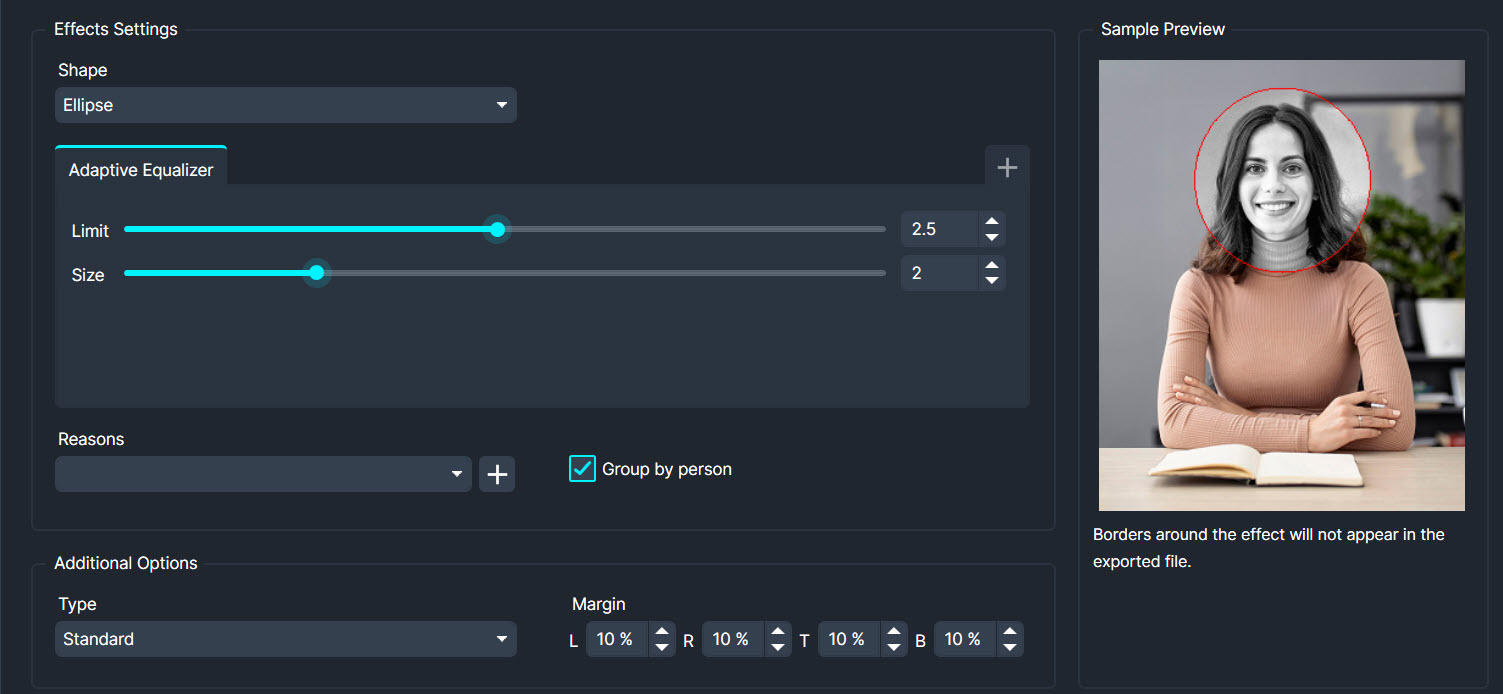
Enhances contrast and detail in specific regions of the image for a more balanced appearance.
Introduces colour to specific areas, useful for highlighting or adding emphasis.

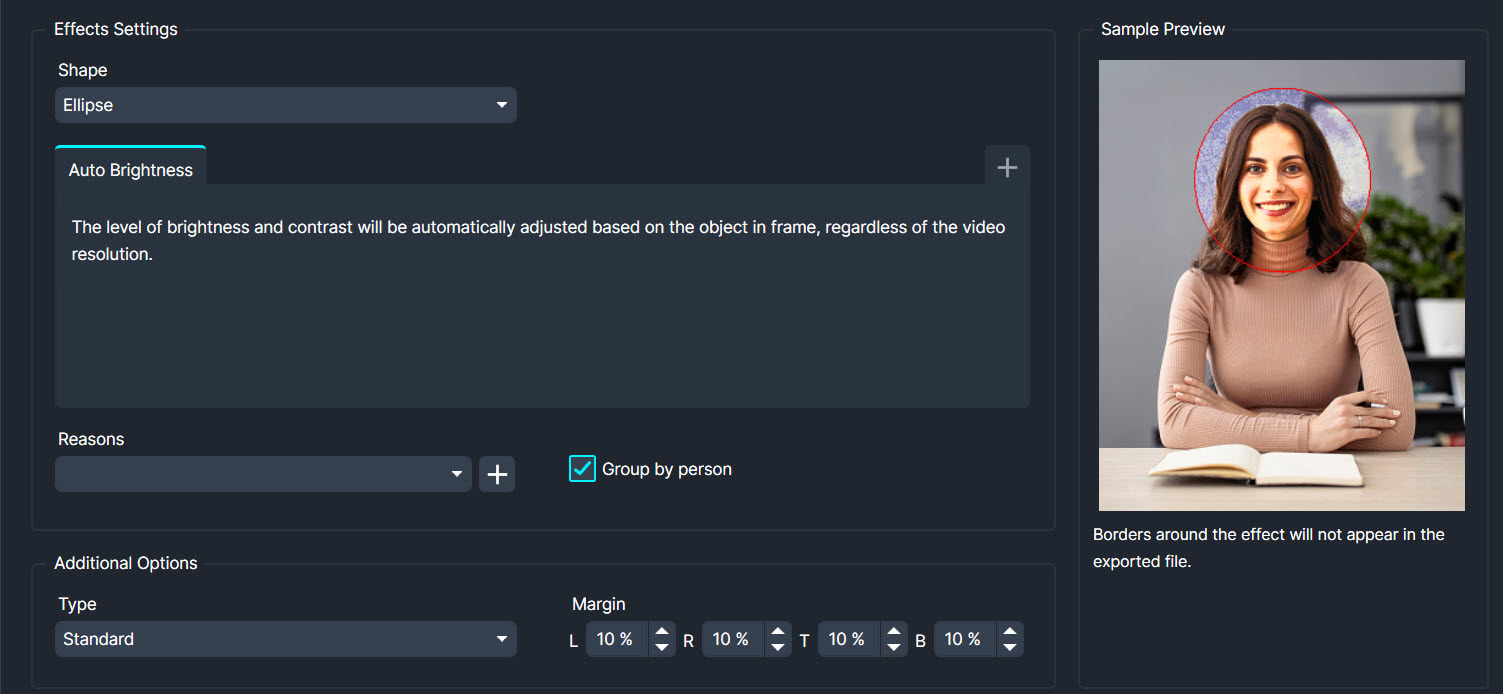
Brightens any subject within the redaction area.
Adds a border around the selected region, separating it from the rest of the content. Colour and thickness can be adjusted.
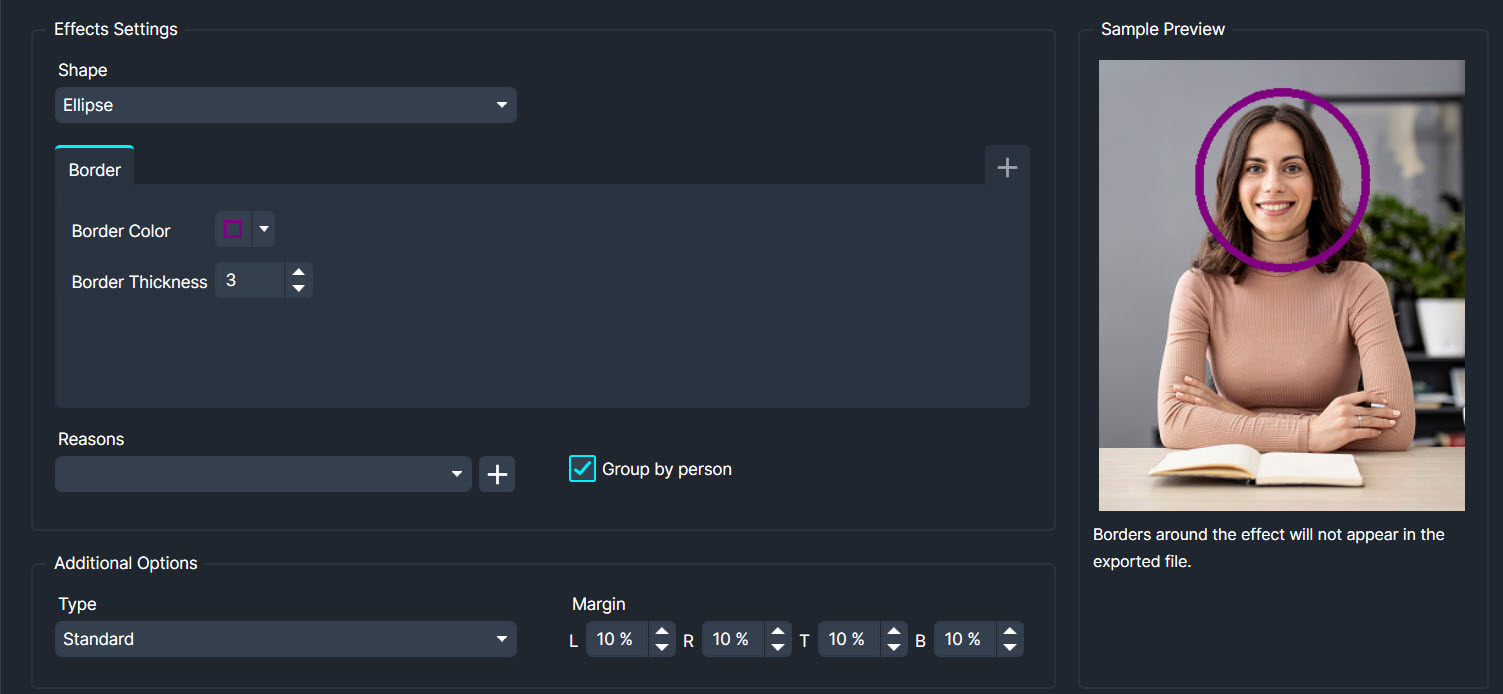
Detects edges in the image, creating an outline-like effect.

Adjusts the overall colour balance of the image to improve visual quality.
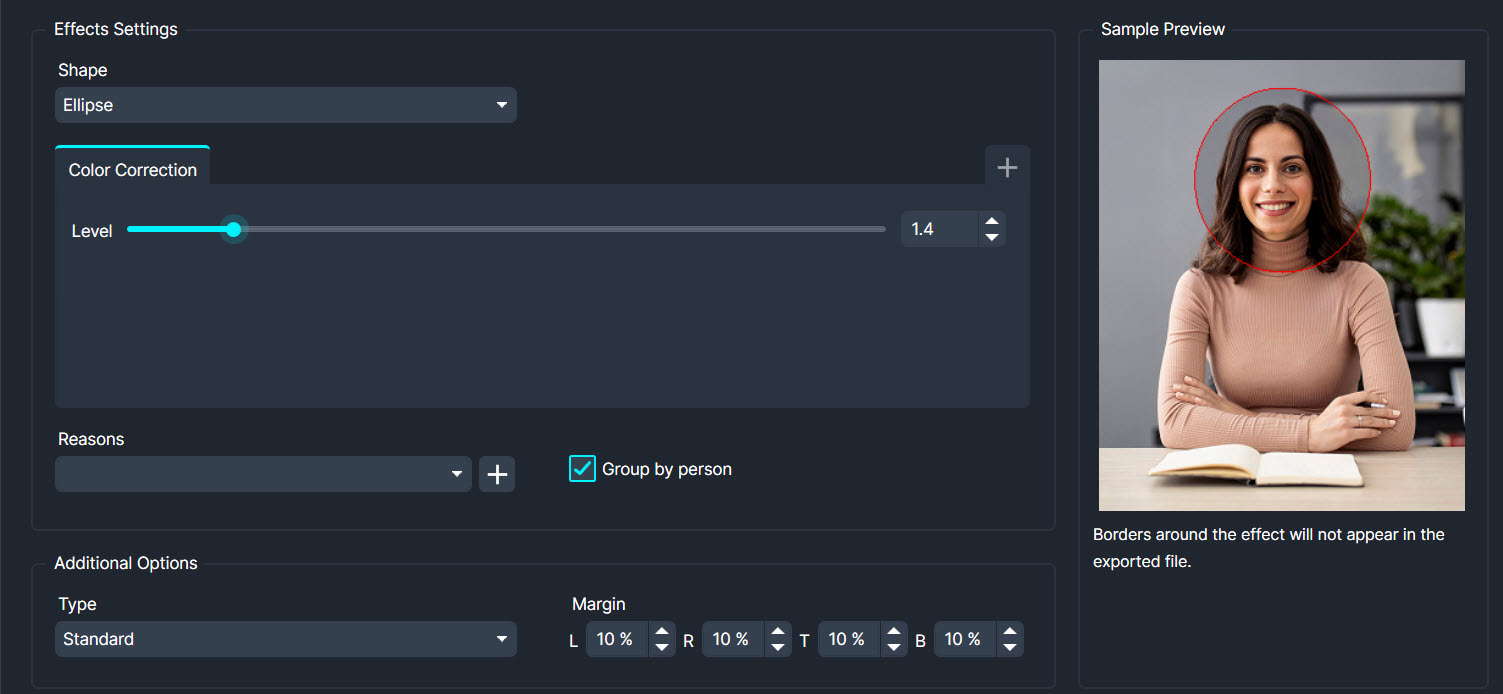
Balances colours within the image, enhancing overall colour distribution.
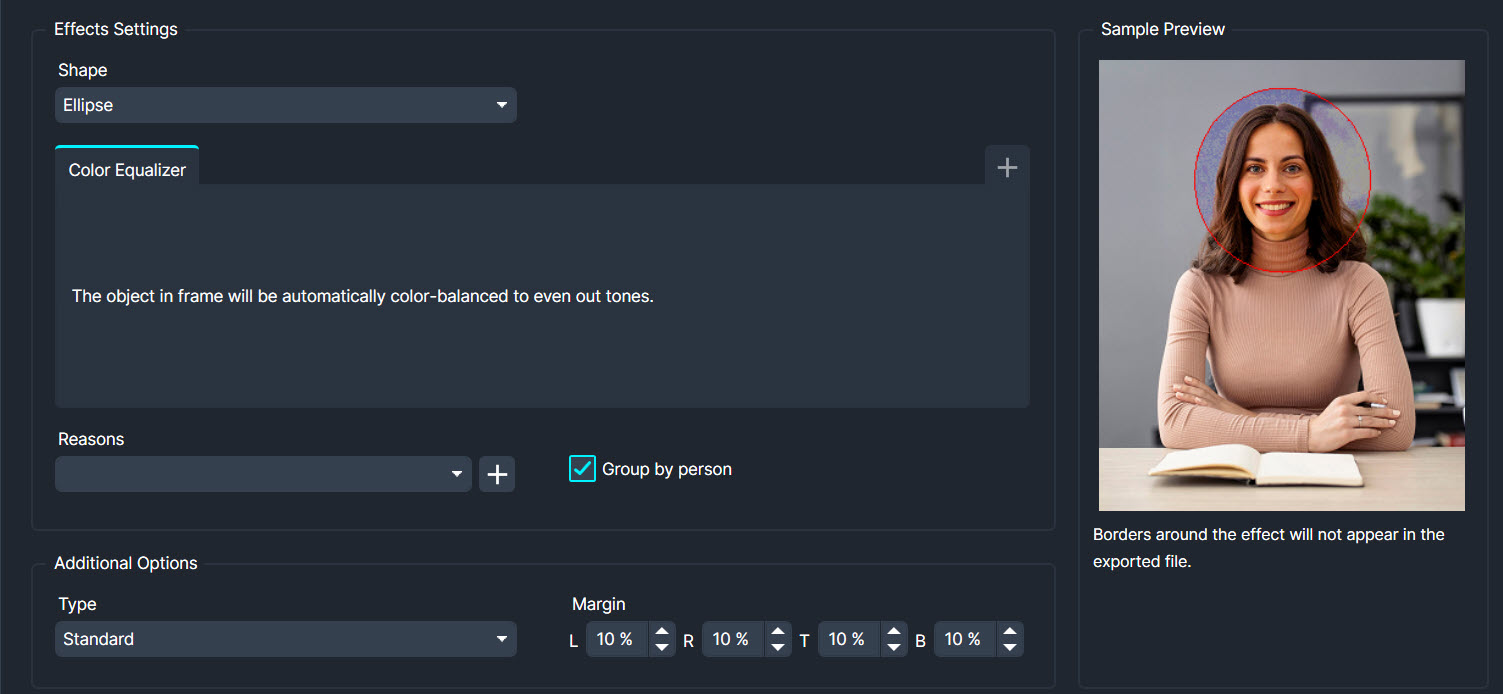
Adjusts the difference between light and dark areas, enhancing visual definition.
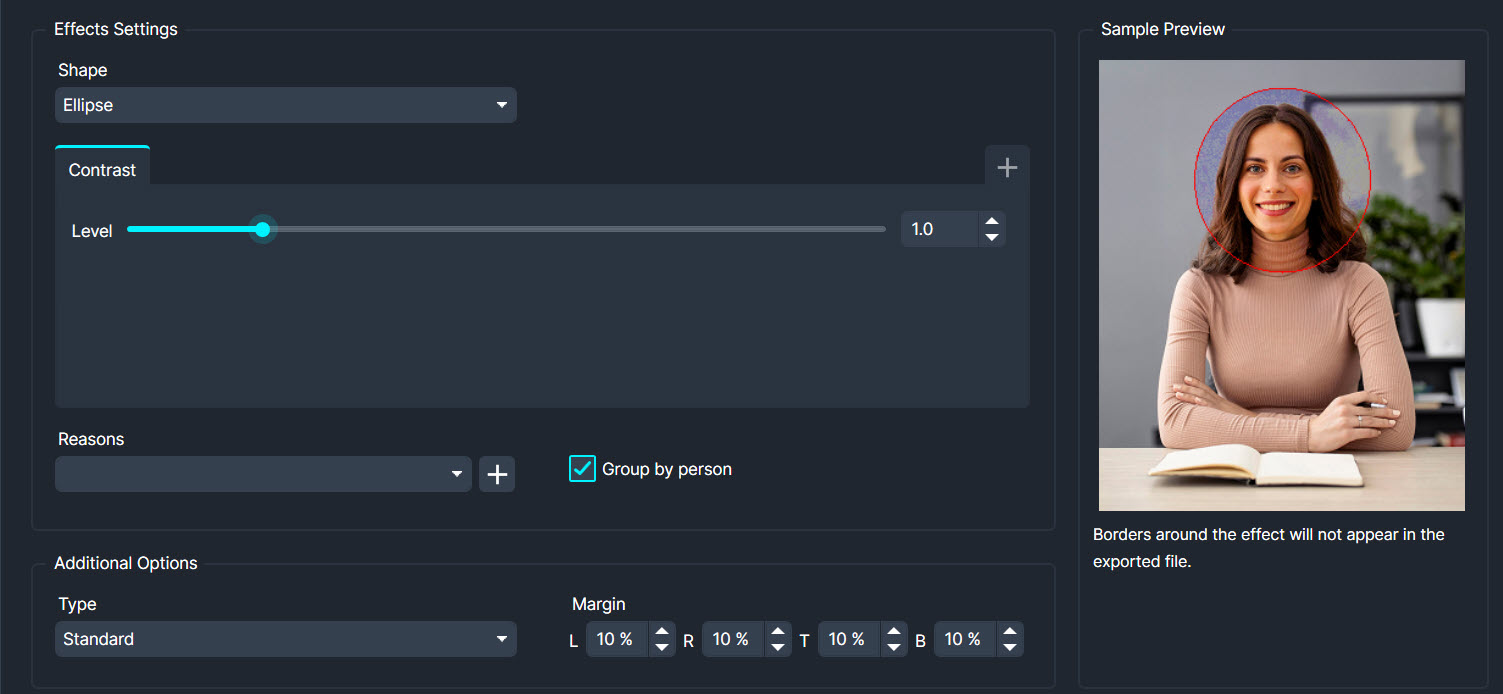
Reduces noise and graininess in the image, resulting in a smoother appearance.
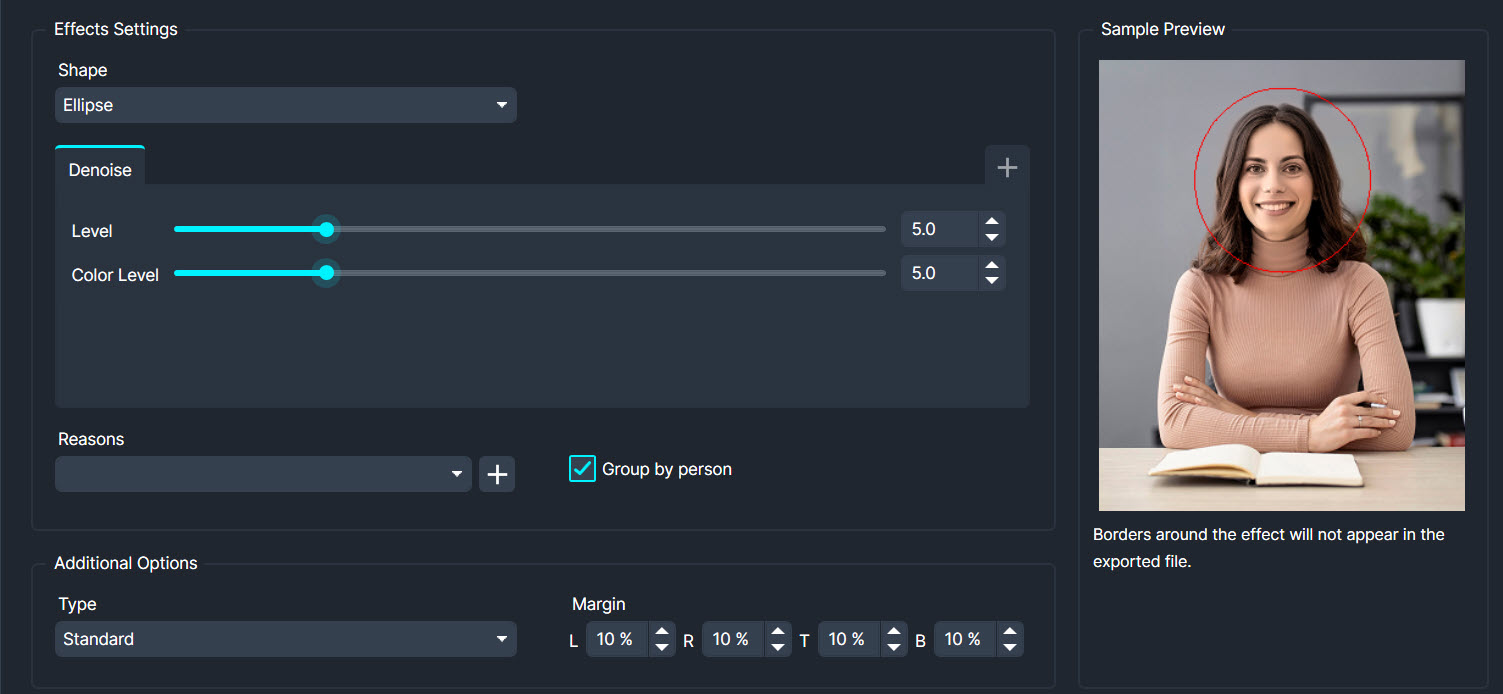
Expands the selected area, often used to make objects bolder or more prominent.
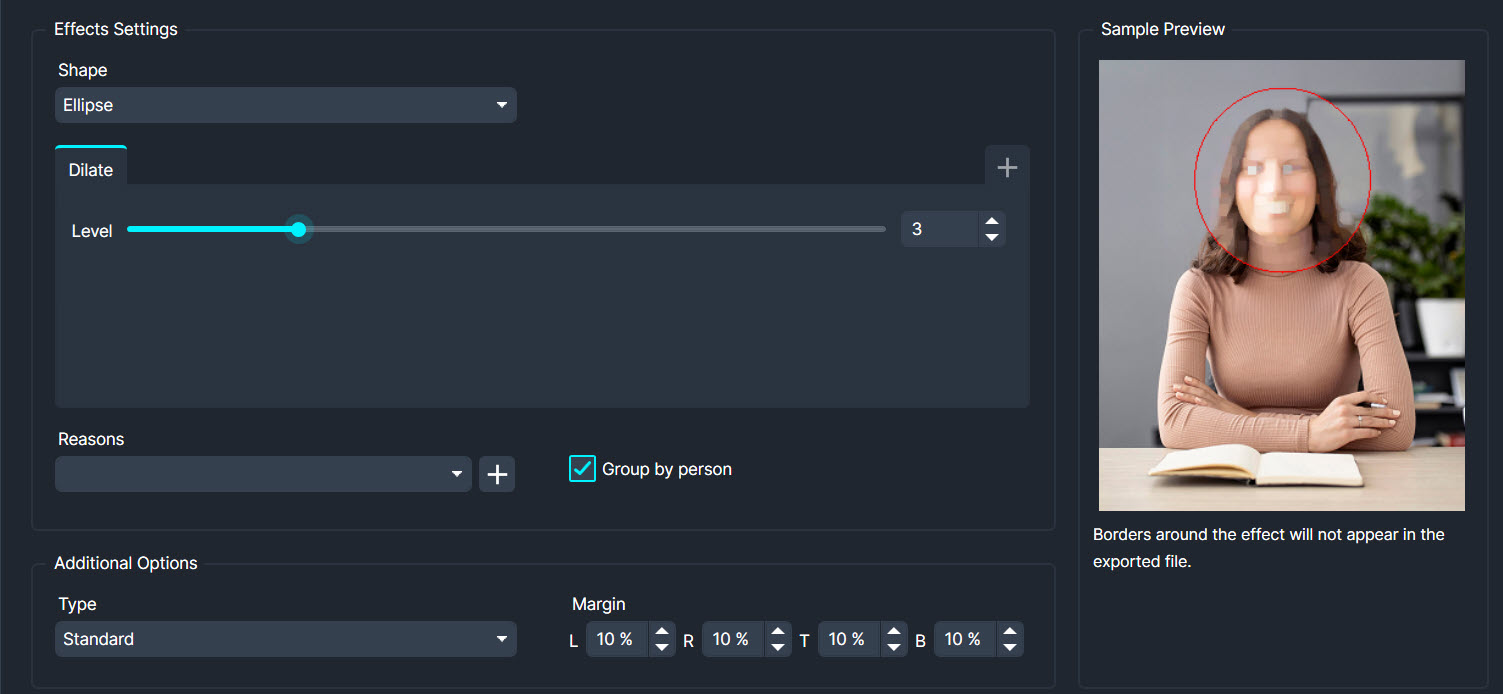
Enhances the edges of objects, making them more distinct.
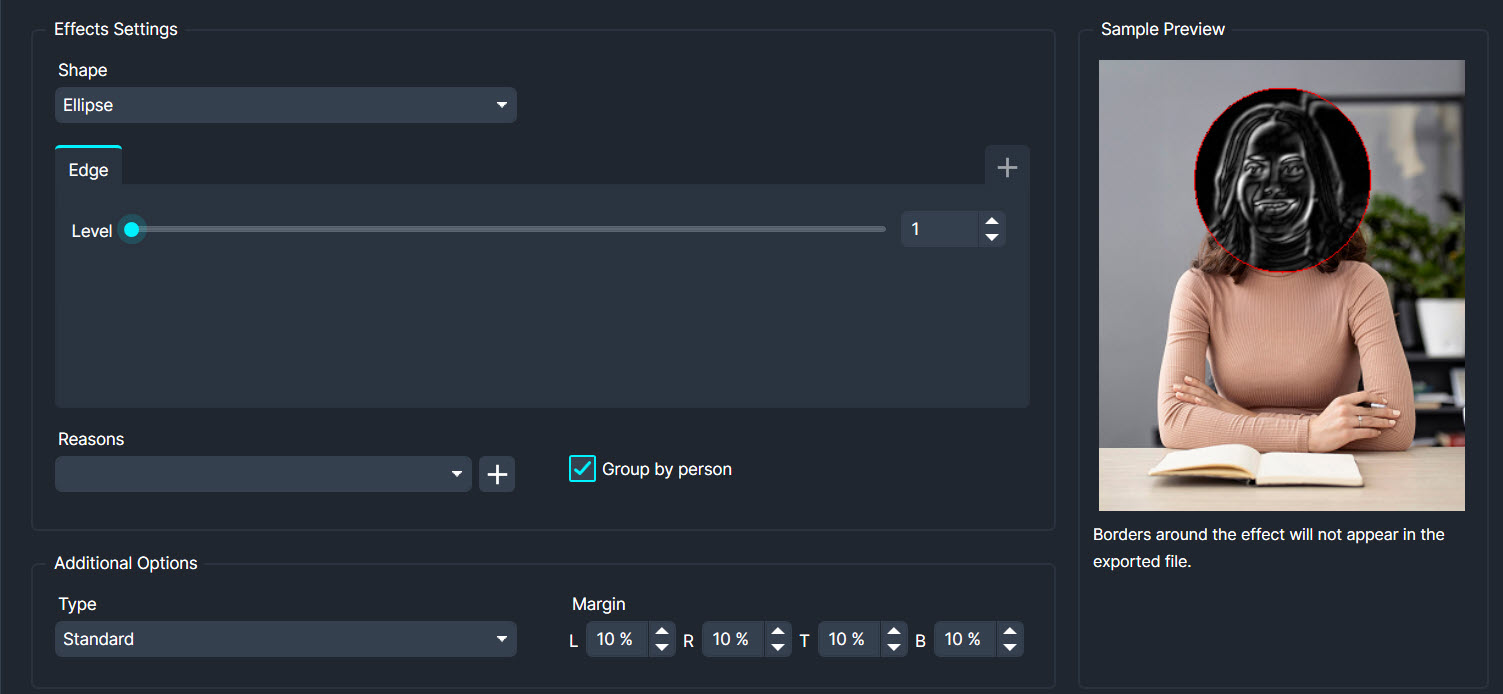
Adds a three-dimensional appearance by emphasizing raised and recessed areas.
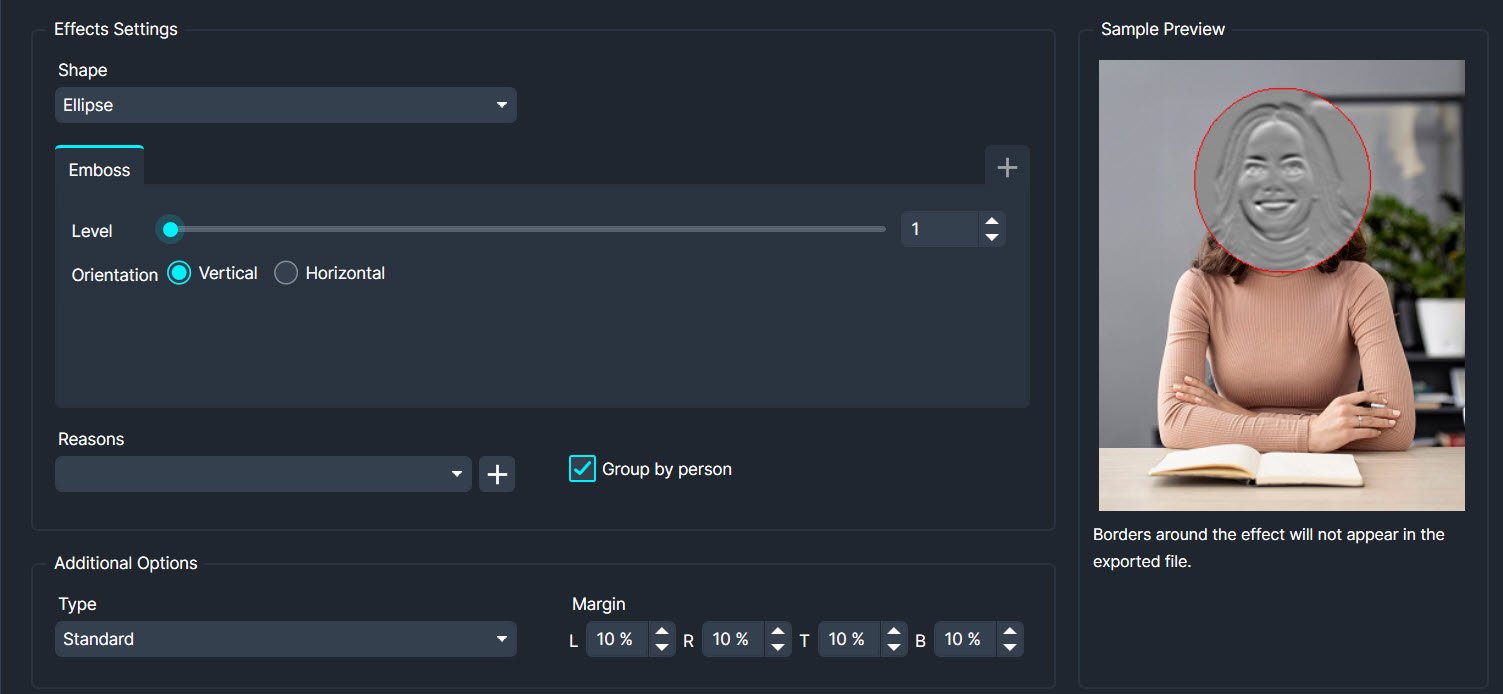
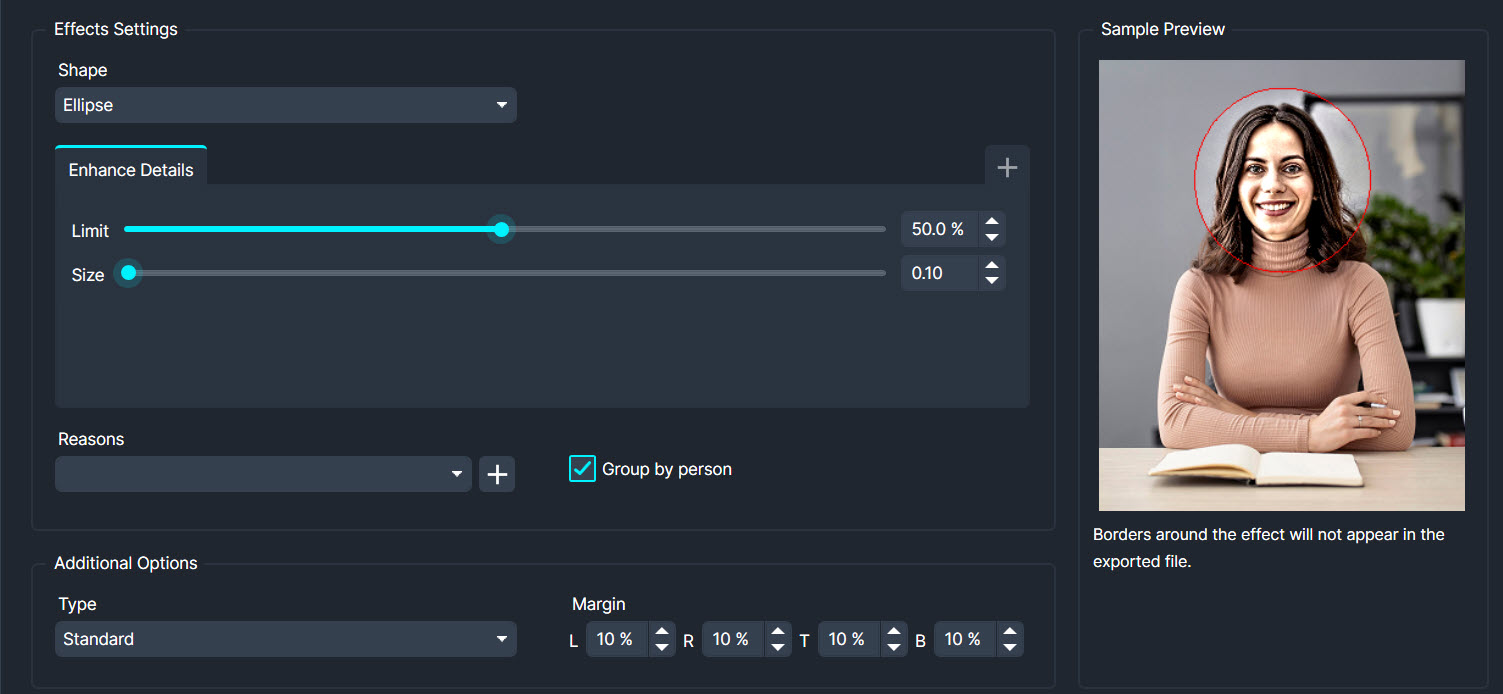
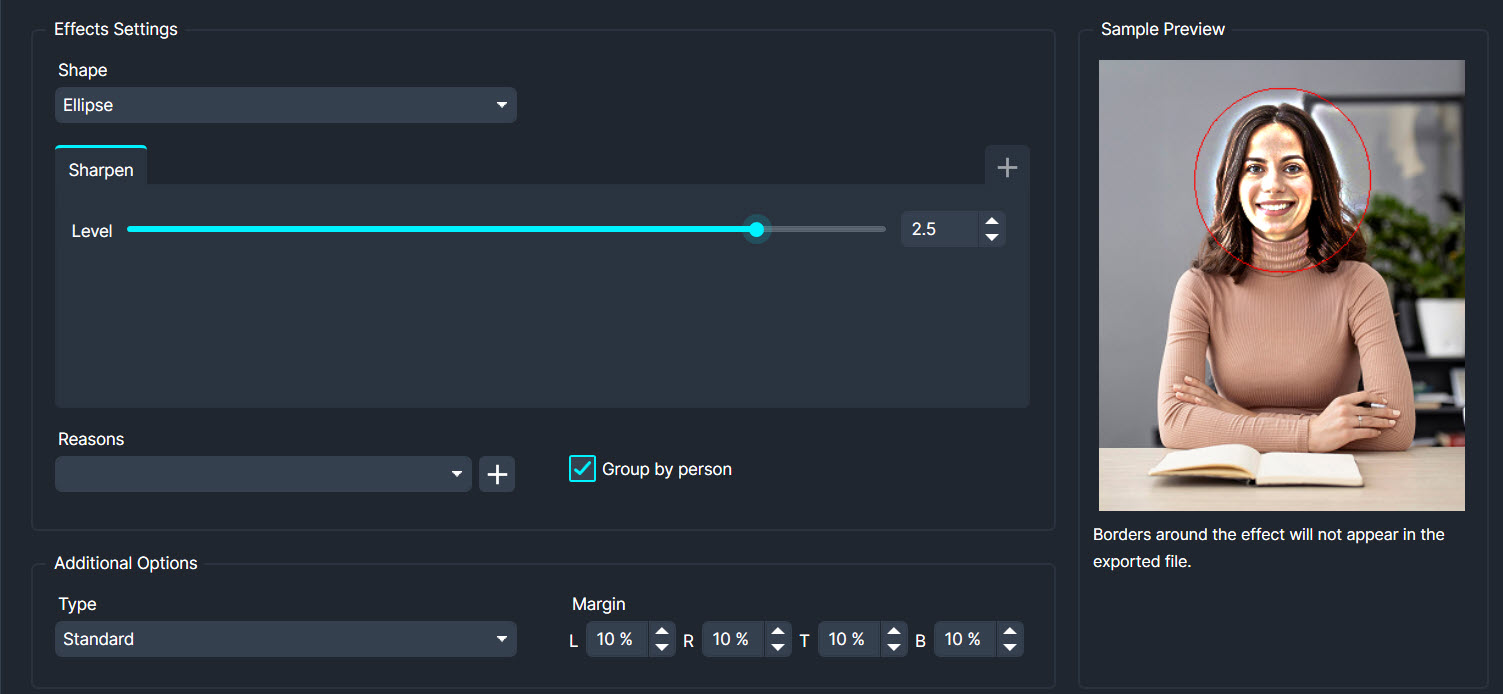
Increases clarity and sharpness of image details.
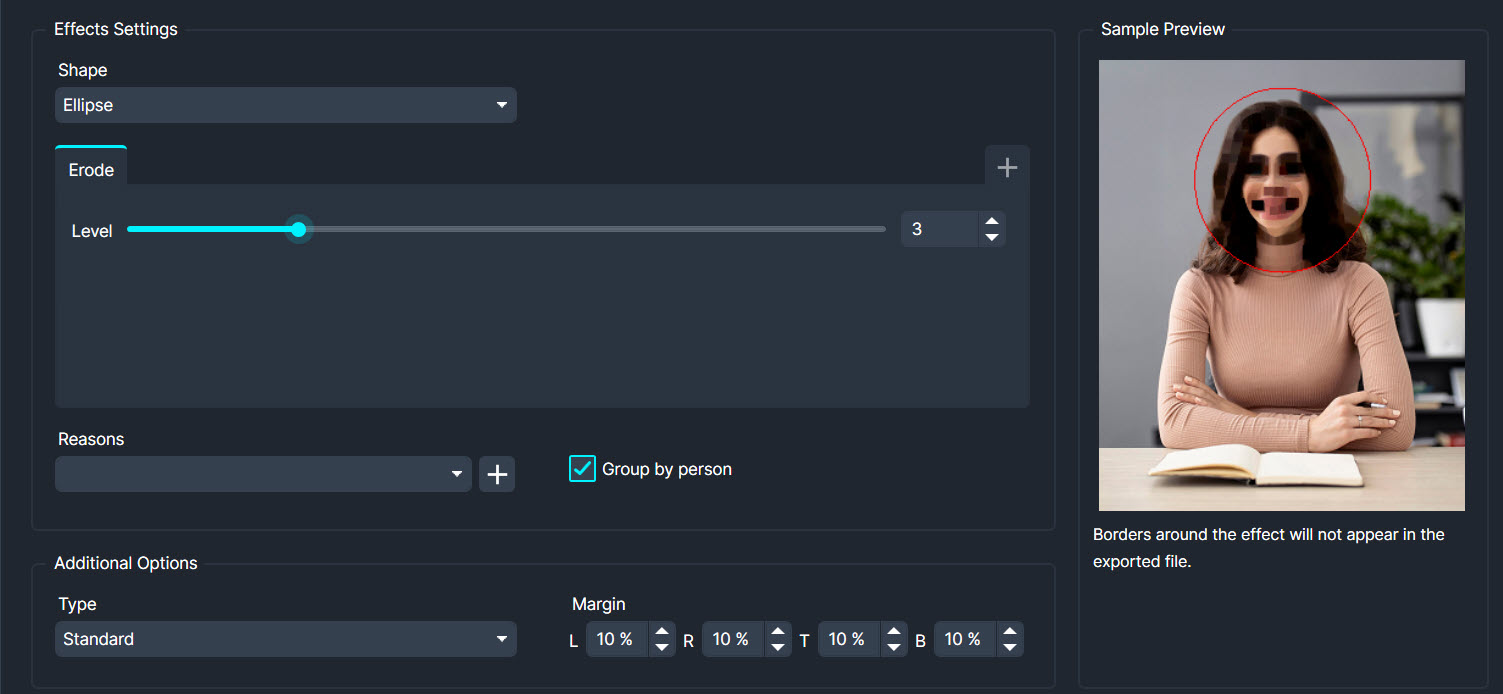
Shrinks the selected area, often used to refine object shapes.
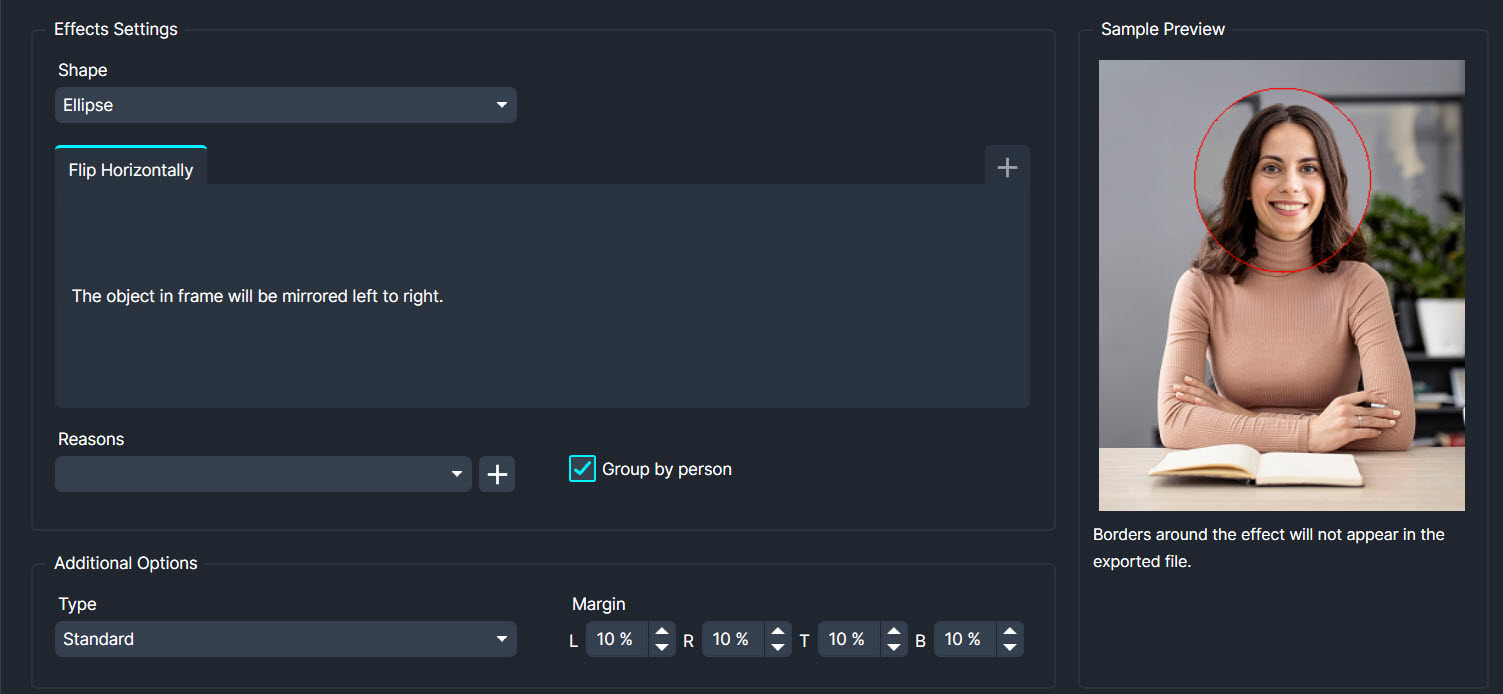
Flips the image horizontally along its vertical axis.
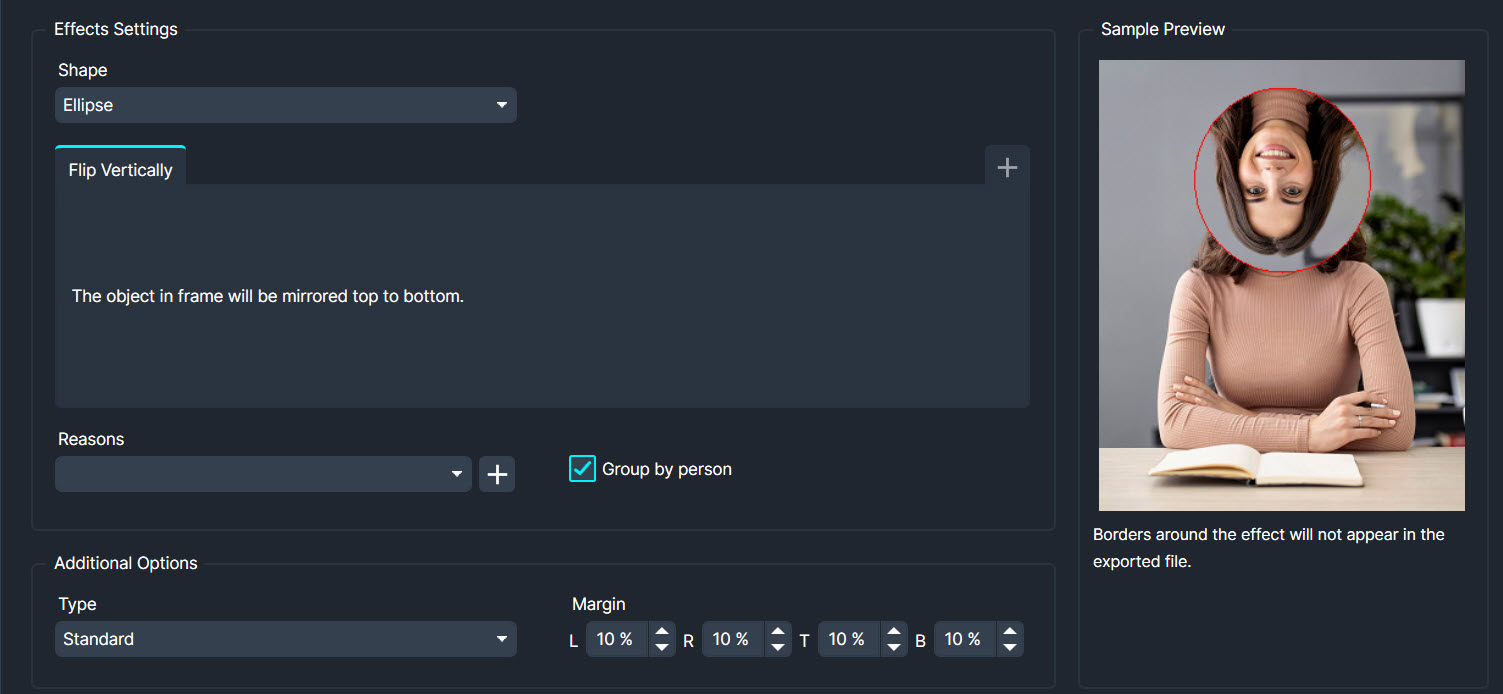
Flips the image vertically along its horizontal axis.
Applies a specific type of blur that creates a soft, smooth appearance.
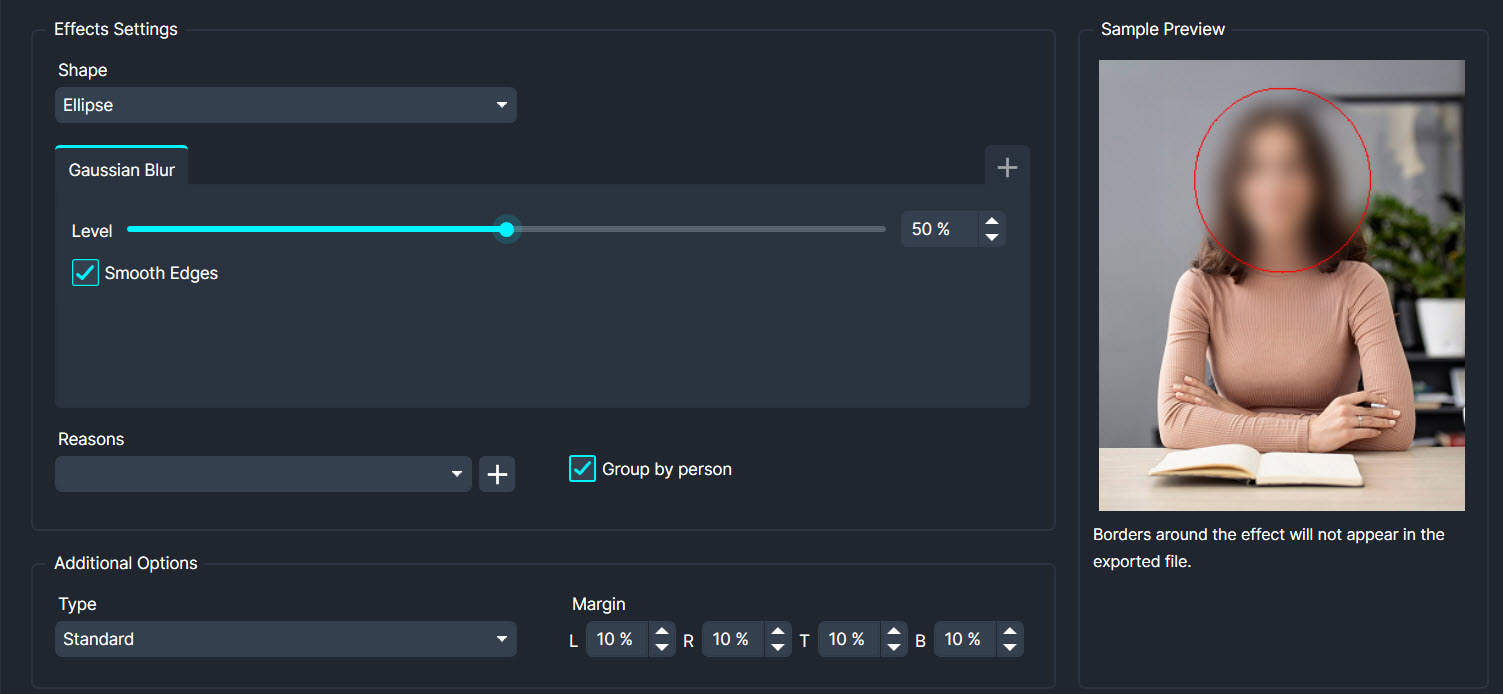
Converts the image to greyscale, removing colour information.
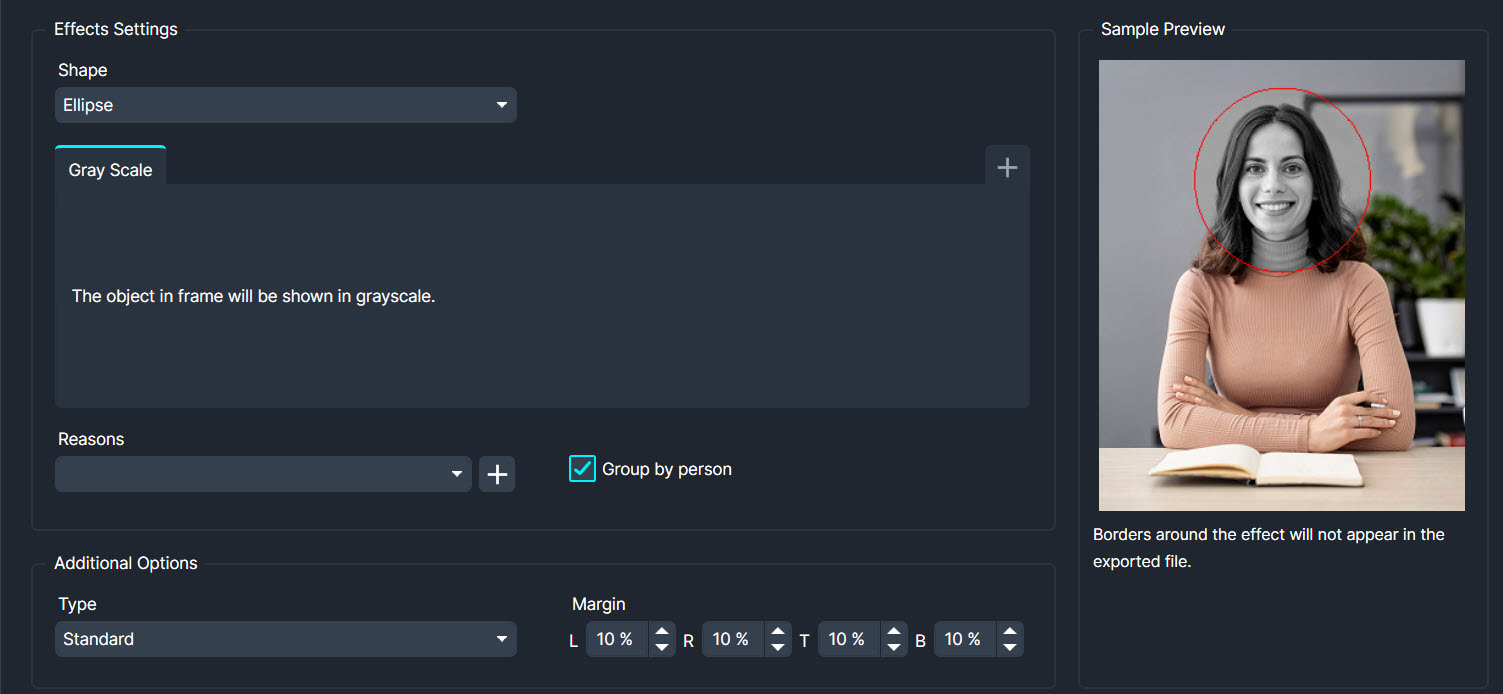
Fills in selected areas with content that matches the surrounding region, effectively removing unwanted elements.
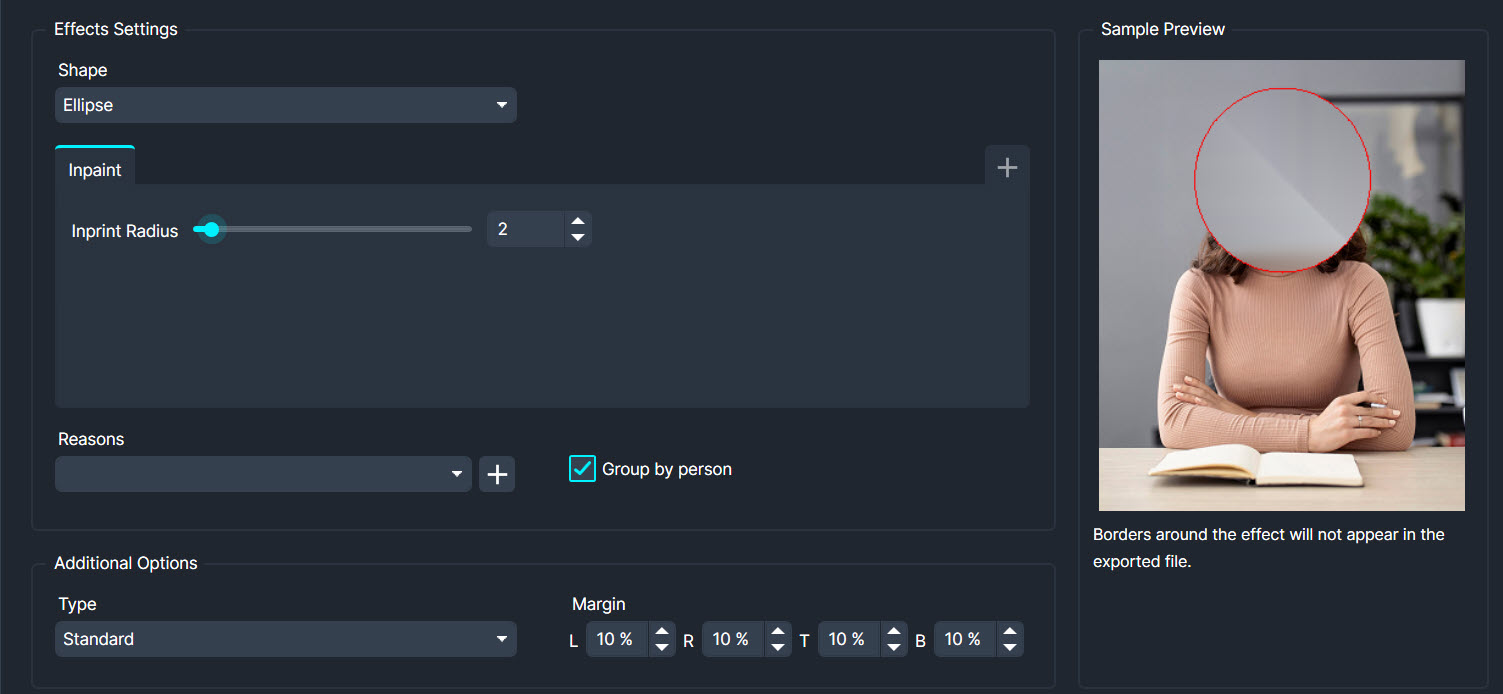
Reverses the colour values in the image.
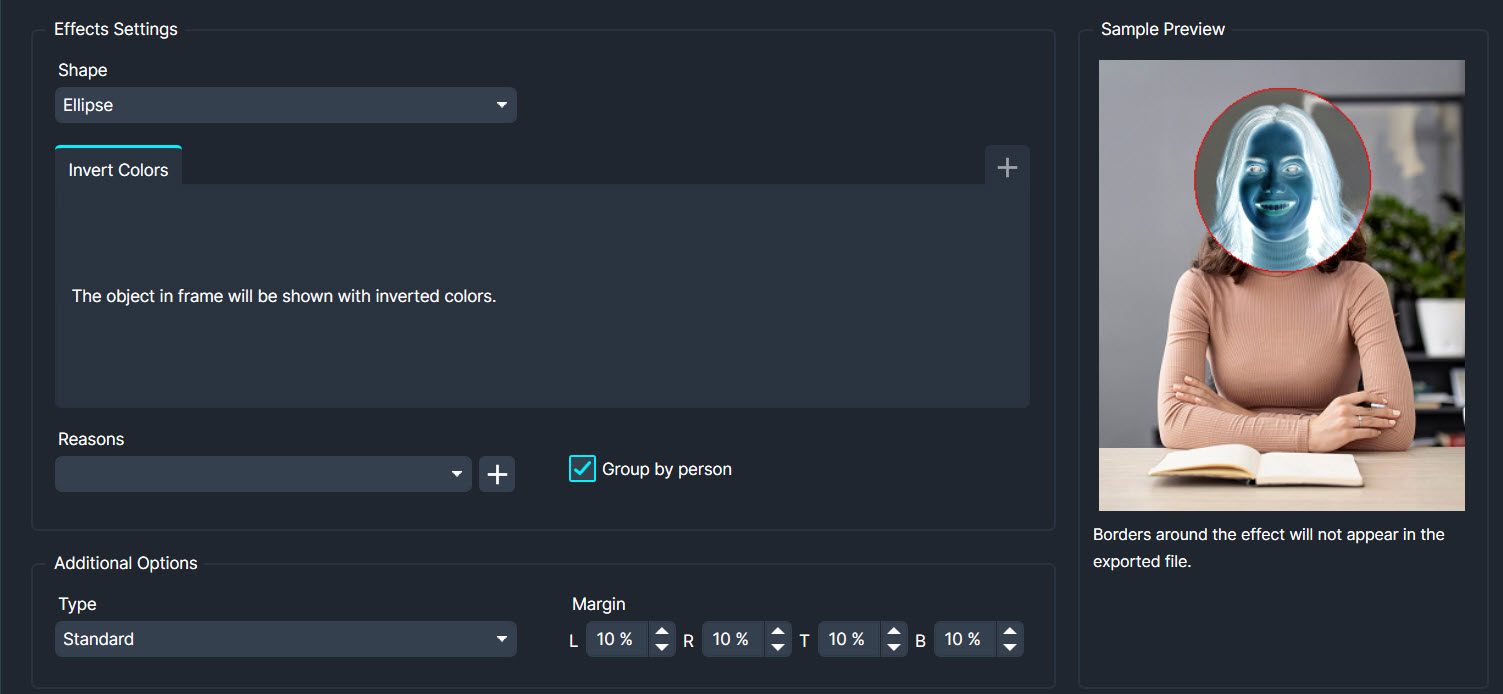
Increases light on subject inside the redaction area.
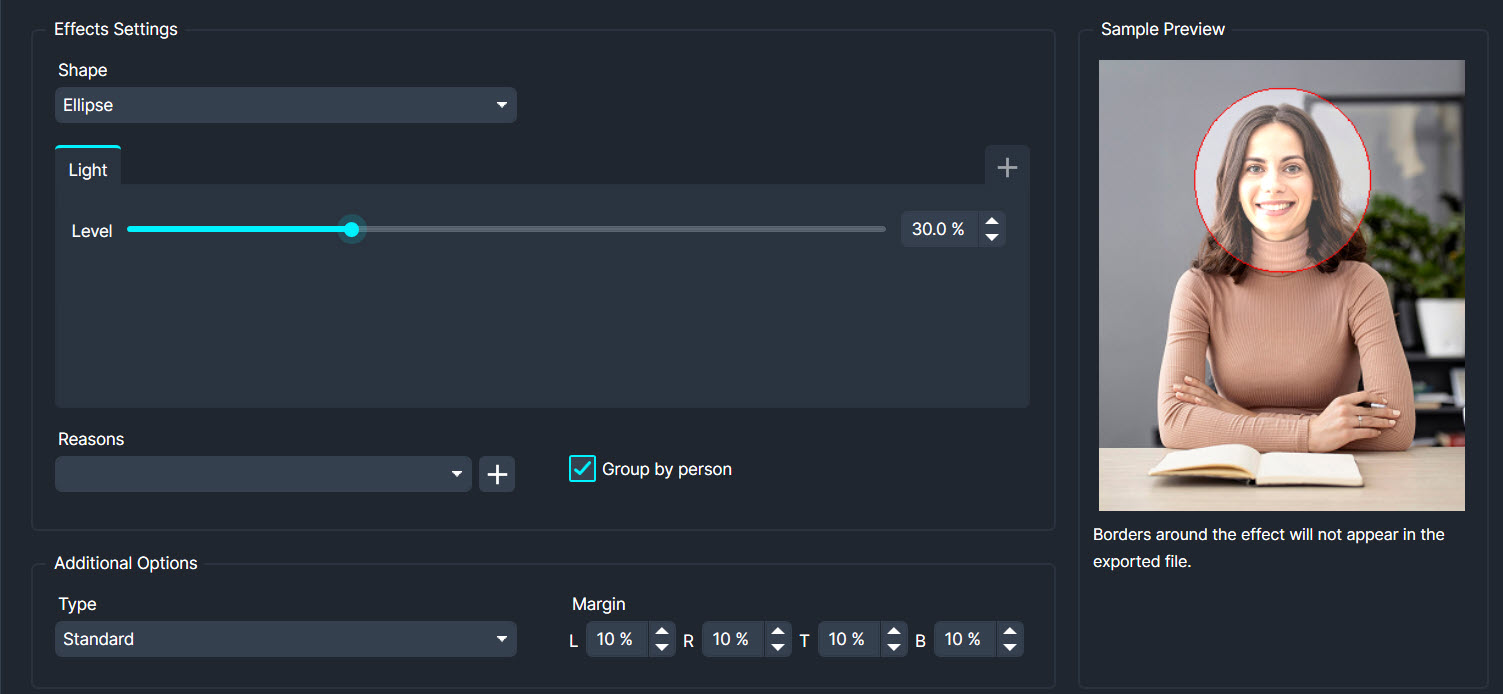
Enlarges a specific area of the image for closer inspection.
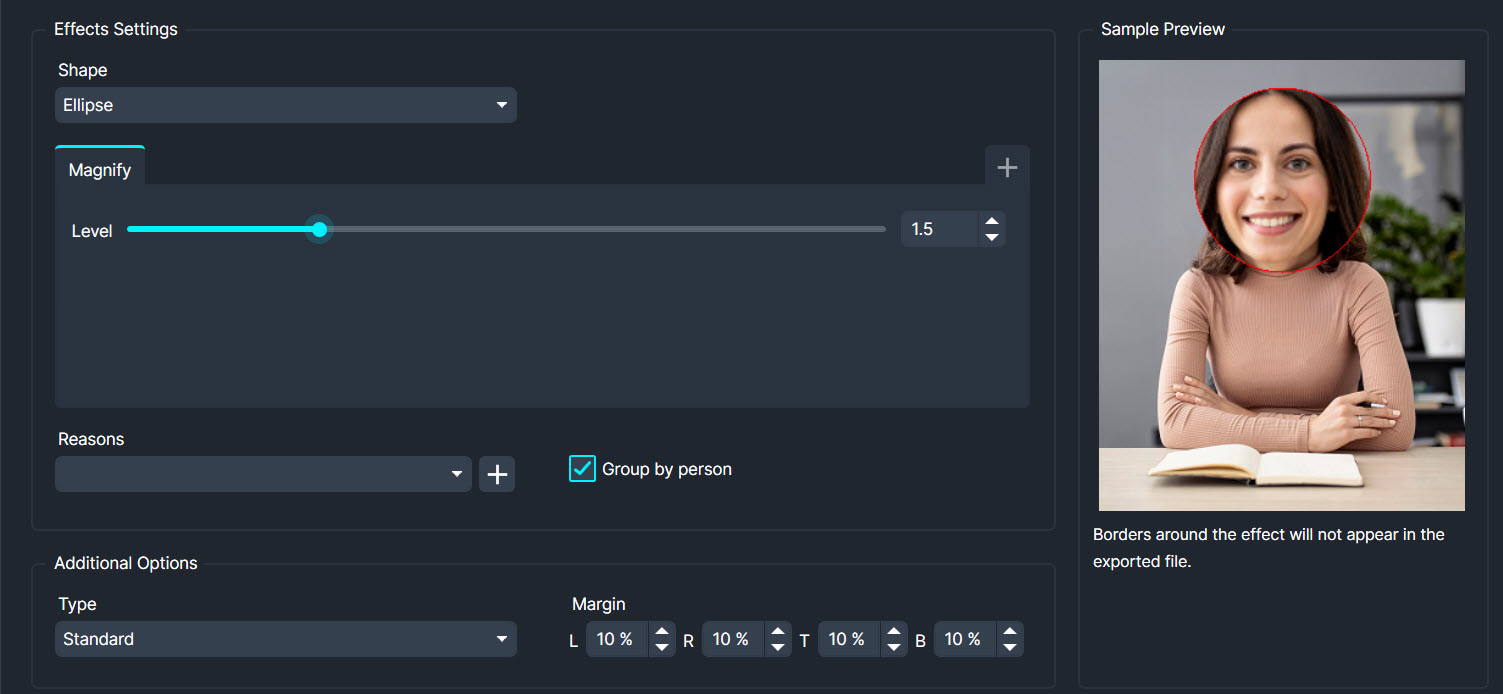
Applies blur by calculating the median value of pixels, reducing noise and preserving edges.

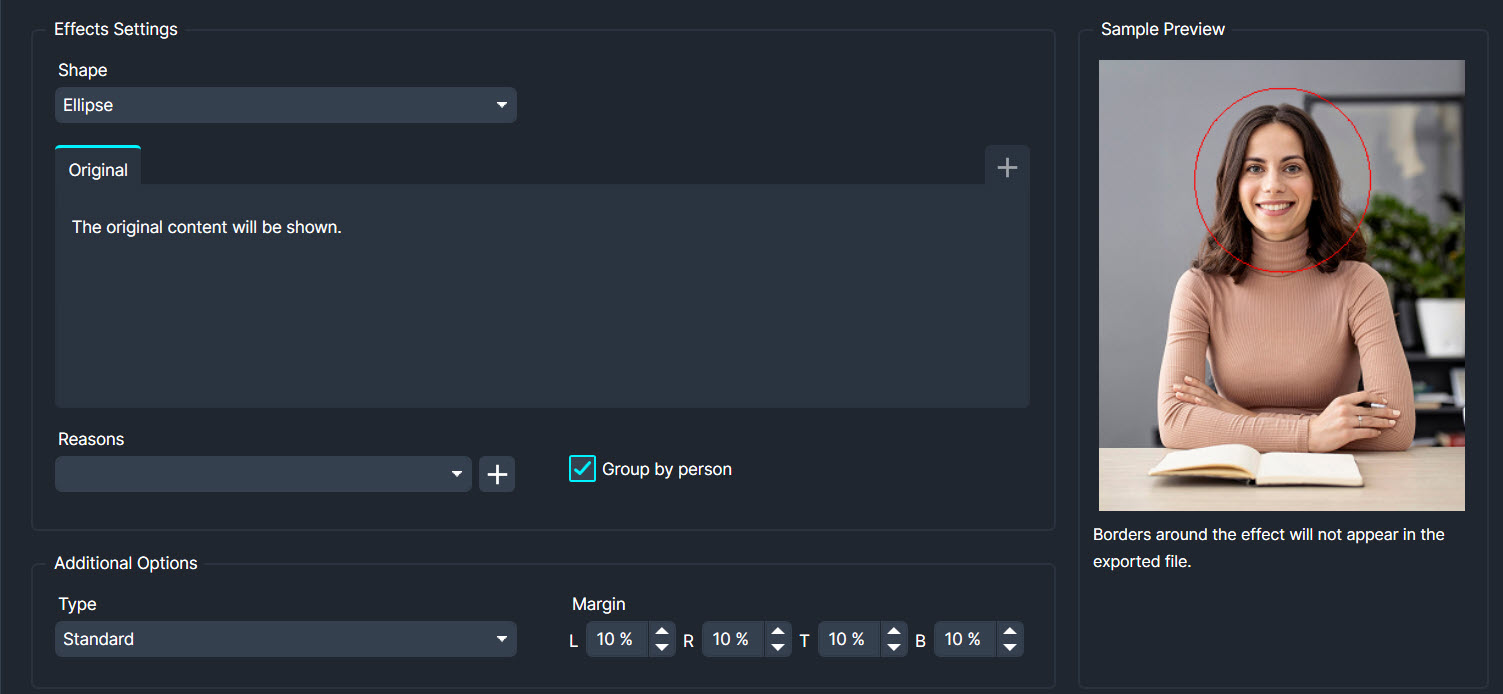
Using the Original effect ensures that the relevant area such as a face or timestamp in your video remain visible, even when other objects pass in front of them or come into the margin area.
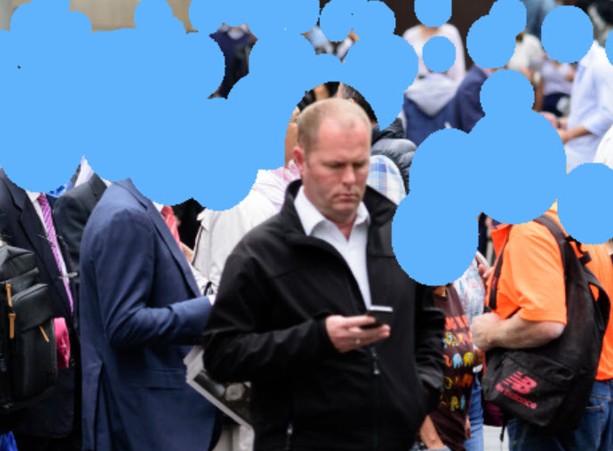
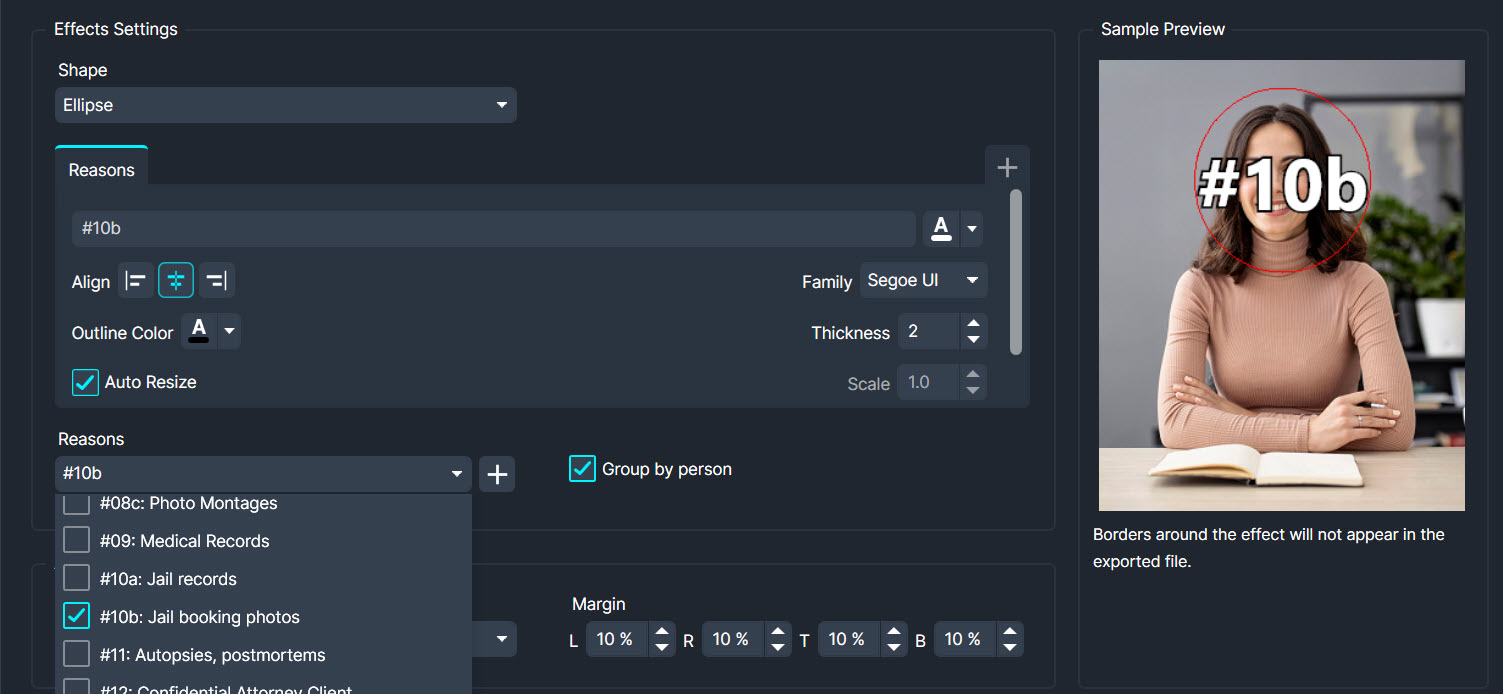
Allows users to not only obscure sensitive information when combined with other effects but also to annotate why that information was hidden.
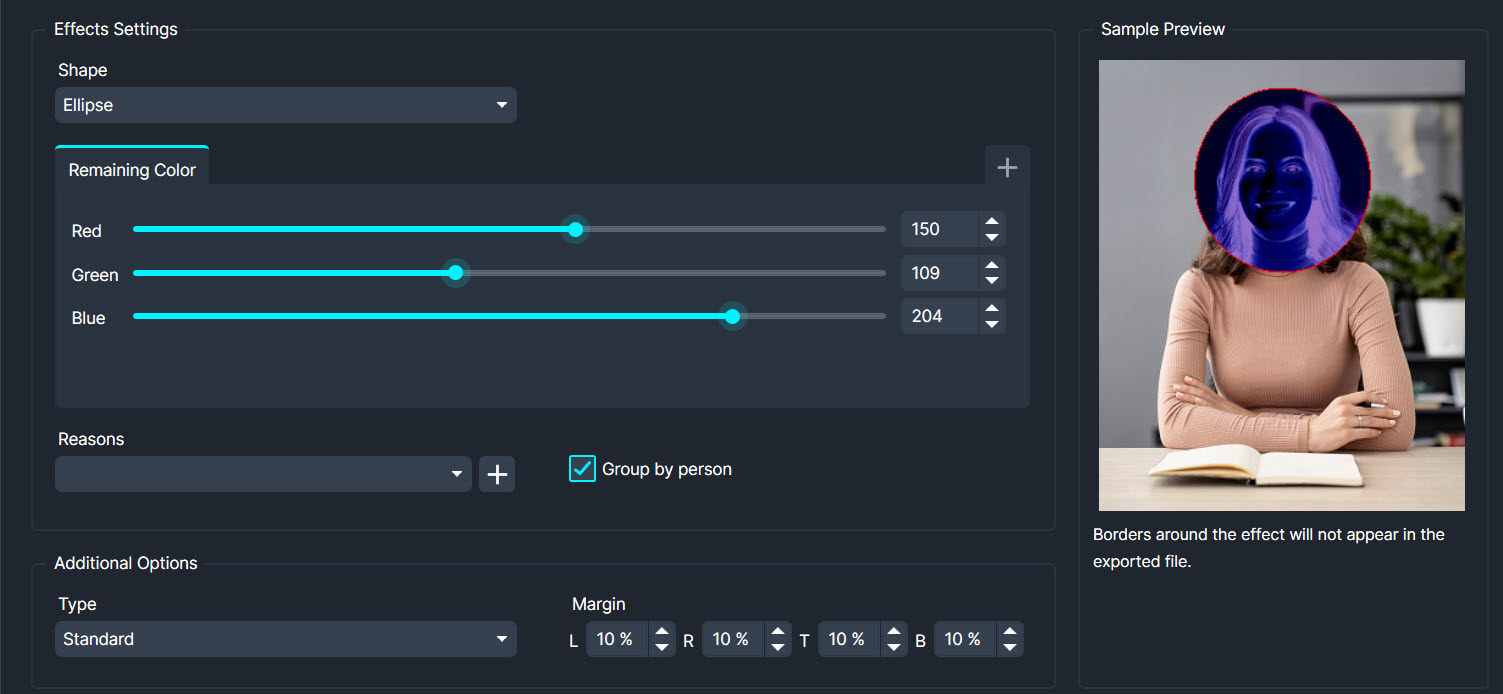
Removes all colours except for a specific colour range.
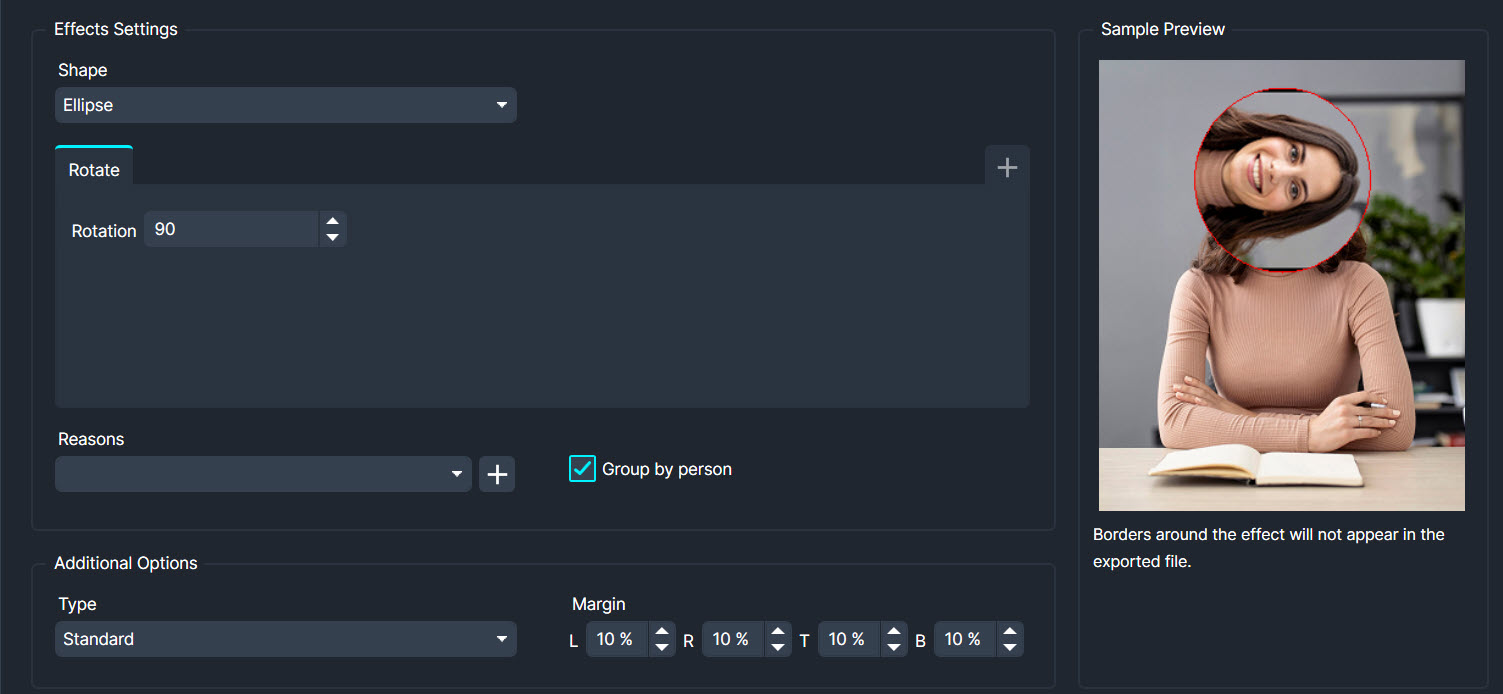
Rotates the image by a specified angle.
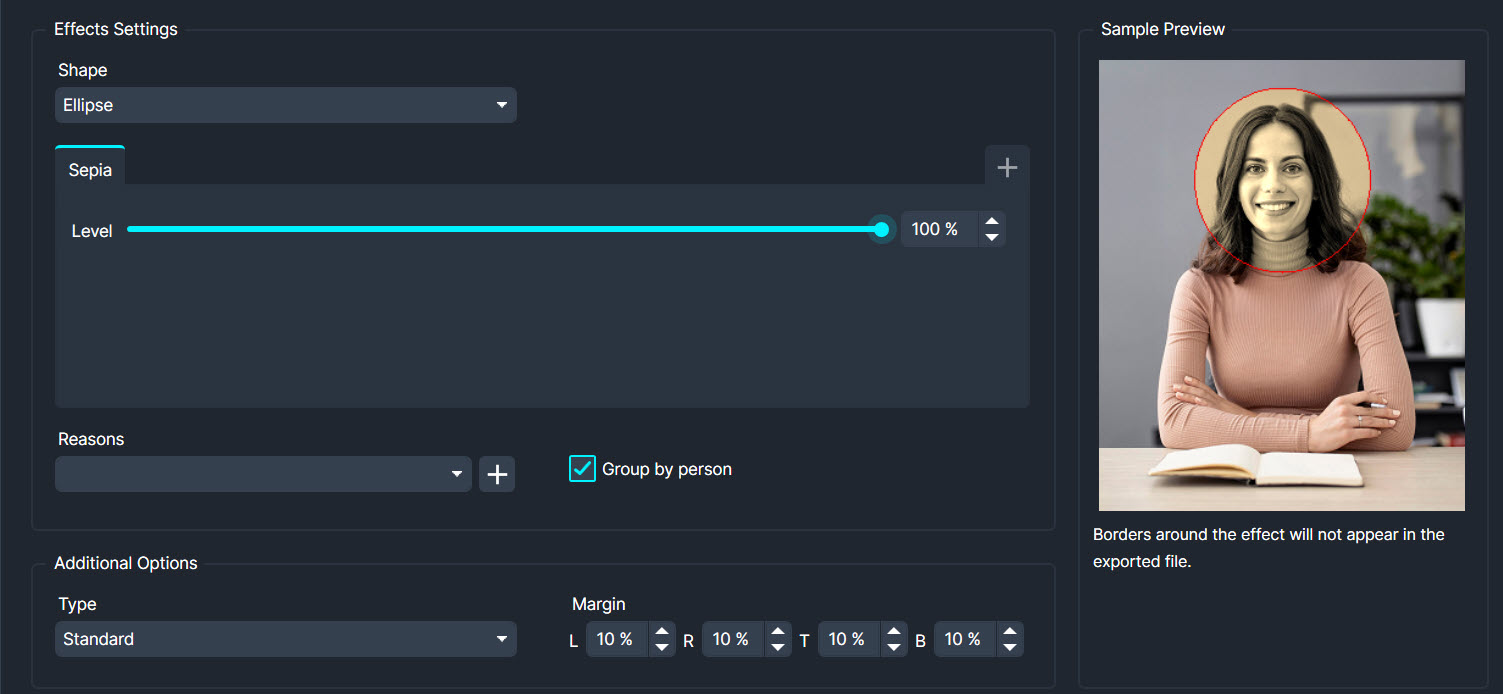
Applies a sepia-tone effect to any object within the redaction area.
Increases the contrast at the edges of objects, enhancing overall image sharpness.
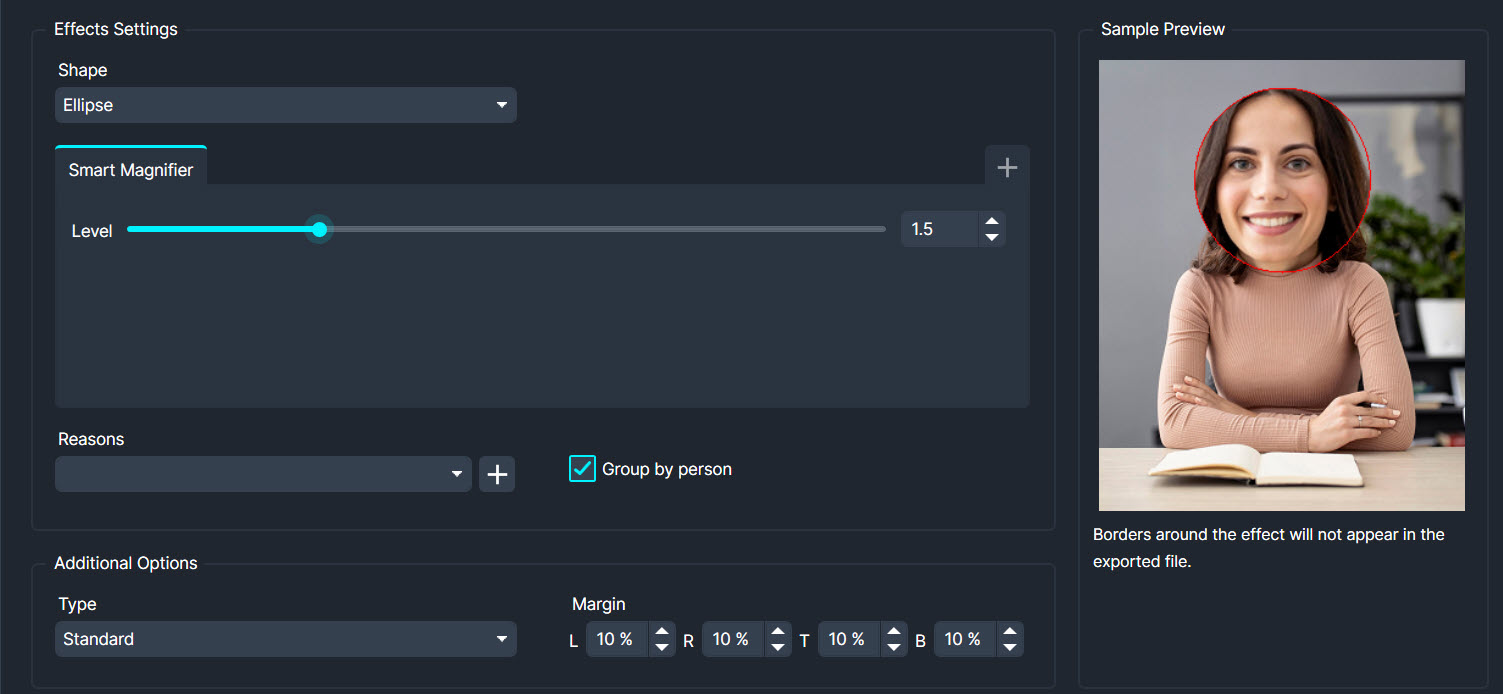
Enlarges selected areas while maintaining clarity and detail.
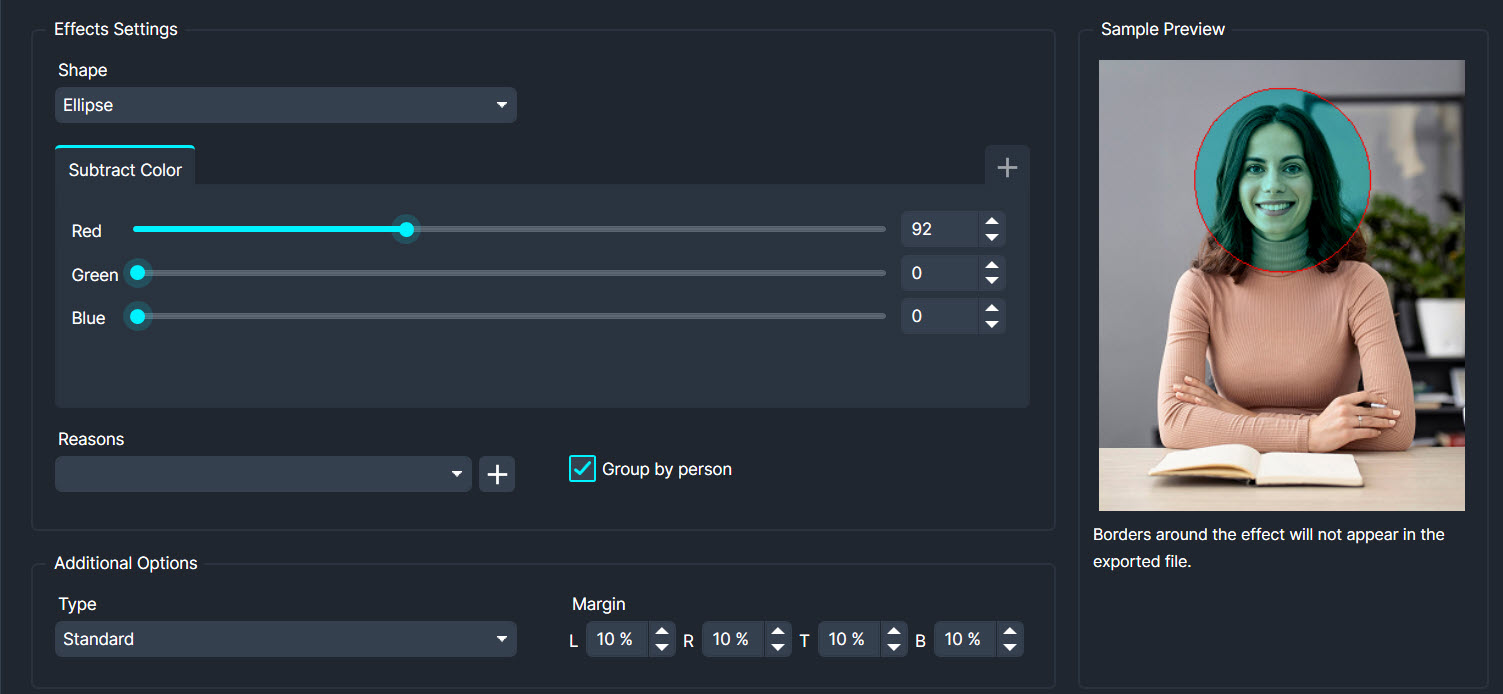
Removes a specific colour range from the image.
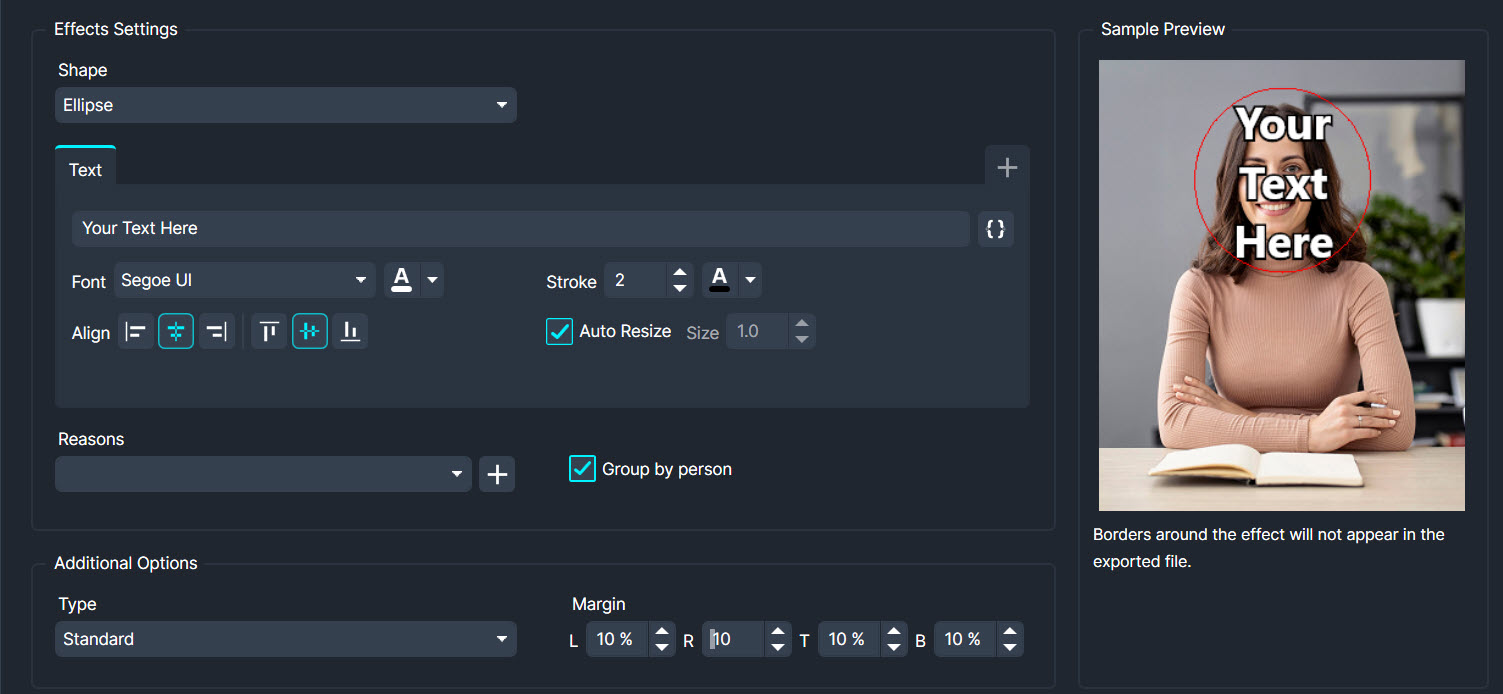
Adds text to the image, useful for annotations or watermarks. You can use the margin settings to move the text outside of the effect area.
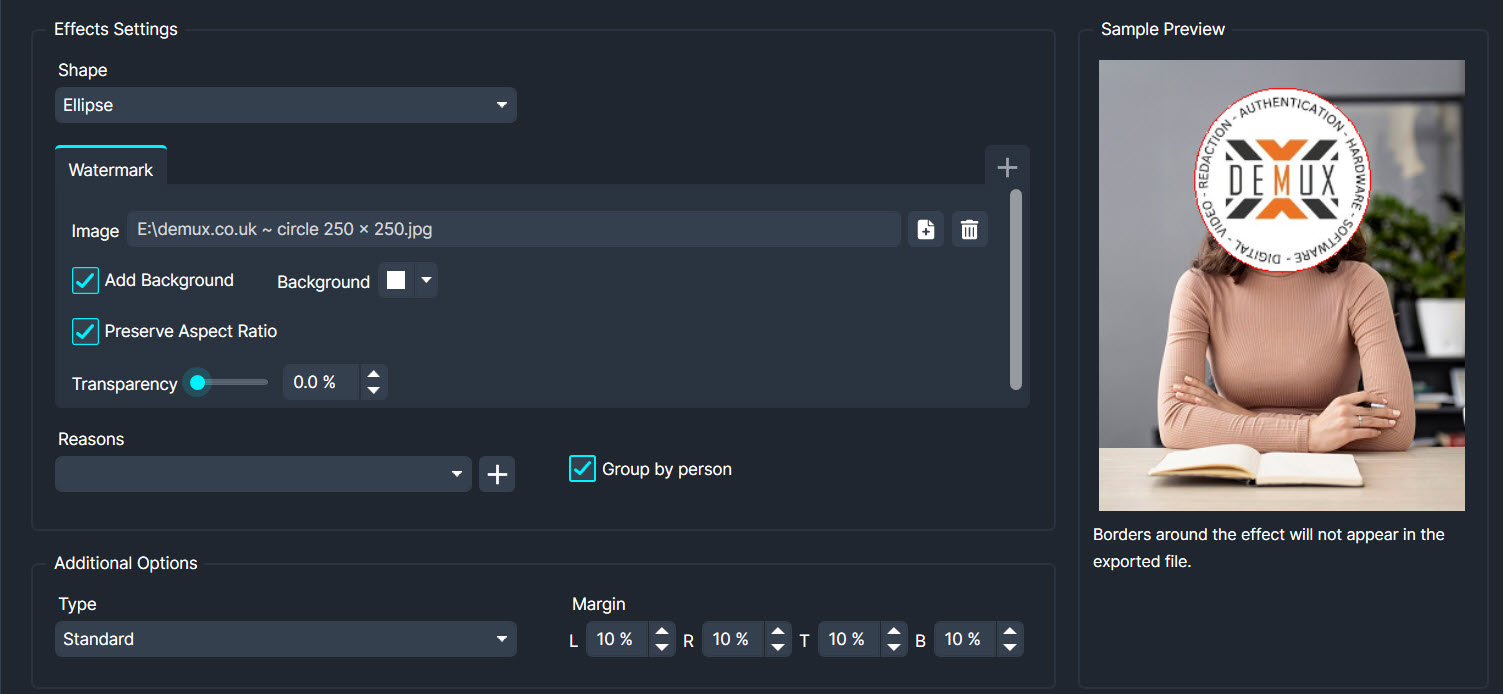
Overlays the image with a watermark, often used for branding or copyright protection. Level of Transparency can be user defined.
Introduction the the time saving redaction tool CaseGuard.
.jpg)
Many CCTV systems now have the capability to record audio as well as Video. With this new release WITNESS can now support recovery of audio from some DVRs.

DEMUX joins the Greater Lincolnshire Regional Defence and Security Cluster


